Tuesday, June 24, 2014

#Oracle Beehive to #MSExchange through a proxy -- alternate strategy

We never shy away from saying that migrations are hard.

We also never shy away from saying "Nope -- you're in over your head."

And we thought both of these were going to come to bite us as we looked at migrating Oracle Beehive from behind a proxy server.  

A set of test data we would normally expect to migrate in a few minutes was taking hours.

And there was no way to remove the proxy.

Running the calculations told us the full set of users would take four days on a single instance.  We could not put someone through that and maintain anything like guilt-free sleep patterns.  We put on our thinking caps and came up with the idea of exporting the data into a format we could use (Oracle Beehive IS a SQL database after all), taking that outside the firewall, importing it into an Oracle database, and then inserting the data (the final step herewith shown):


Problem solved.

If it's applicable to you we'll take you through it in your trial phase.

Tuesday, June 17, 2014

Oracle Beehive to Microsoft Exchange Calendar Migration: Beehive-Buddy

Oracle Beehive seems to be the legacy system folks are replacing at record pace these days.

So we've been burnishing some of the features.

Latest one: Beehive Buddy Lists.  
Any contacts tagged as Beehive-Buddy will not migrate.  This reduces the number of duplicate contacts.


Thursday, June 12, 2014

How to Stop Facebook From Using Your Browsing History

This is not about calendaring.

But let's face it, none of us democracy-loving folk want to live with the Thought Police looking at our every move.

How to Stop Facebook From Using Your Browsing History is a REALLY useful link.

Remember: if you're not paying for the product, you ARE the product (see:Season 1, Episode 11: To Heck and Back) .

Tuesday, June 10, 2014

Migrating #MDaemon Public Distribution Lists to #MSExchange

To Migrate MDaemon Public Distribution Lists to Microsoft Exchange using our tools, follow this procedure:

  1. Create a new directory to hold the processed group files.
  2. Launch the mCalReader_ParseGroupFiles application.  Browse to the MDaemon server directory for the group files (these all have an extension of *.grp and the format NAME@Yourcompany.com.grp), and the output directory from Step 1.  Ensure the file extension pattern matches your group files (Note: it defaults to @YOURCOMPANY.com.grp)
  3. Press “Go.” The processing should happen quickly. Then exit the program.  In the directory from Step 1 you should have a file called Distributionlists.csv.
  4. Move the files and the shell cmdlet “DistGroupCmdlet.ps1”  to the Exchange server (or any shared/accessible directory)
  5. Edit DistGroupCmdlet.ps1:
a. Modify $MyDistFileList to point to the Distributionlists.csv file.
                              i. Note:  the shell will create distribution lists for all entries in this file.  Remove entries that you do not want migrated/created.
b.   Modify $myMigratedOU to point to the OU that will contain the distribution lists.  Note this is a PATH to the OU, and not a typical OU identifier (e.g., ou=xxx,dc=my,dc=com),  Sample OU:, $myMigratedOU = "orca.sumatra.local/Clients/YOURCOMPANY/Lists"
6.Launch Exchange PowerShell, change directory to the location of the script and distribution list files, then run the script: .\ DistGroupCmdlet.ps1.
Notes:                                     
·         If you want to test a few distribution lists:
o   Run the EXE to parse all of the GRP files.  The EXE produces the file  Distributionlists.csv. 
o   Edit that file, and leave the first line (header) and only those groups you want to test.  Then,
o   Copy the Distributionlists.csv, the supporting group CSV export files, and the PowerShell script to Exchange
·         Accounts:
o   Since there is a possibility that users might not exist in Exchange, the script creates the distribution list first, then adds users to the list one user at a time. 
o   If the user does not exist in Exchange, the cmdlet throws an error but continues.
o   Also, the tool does not change any of the SMTP address domains, e.g., email addresses such as “@YOURCOMPANYmail.YOURCOMPANY.com” will be migrated as “@YOURCOMPANYmail.YOURCOMPANY.com”, and not “@YOURCOMPANY.com.”

By the way, this was field-proven as the last stage of a migration at a 300 user site over this past weekend.

Tuesday, May 27, 2014

#CalDAV to #MSExchange calendar migration tool

A quick gut-check from our loyal readers: do you guys want a CalDAV to Microsoft Exchange migration tool?

UPDATE December 2016:  Folks: We did this.

Tuesday, May 06, 2014

The Cookbook Version of Exchange 2013 Migration Rights

Gentle reader,

No matter what you want to do with calendars server-side in Exchange, you are going to need to become conversant in Exchange permissions.  It's the devil's bargain: if you want to migrate all your calendar data and preserve its utility with guest lists and responses, then you need to be able to manage Permissions on your Exchange users.  

So here we're putting out our best effort at a cookbook guide to Exchange 2013 permissions for migrations.  Even though full-state calendar migrations will never be a purely cookbook operation we think this will get you there (and we have some field experience taking a couple of novices through it this way),

First:  GLOBAL ADMINISTRATOR rights are NOT enough.  These rights give you administration rights over Exchange / Active Directory, but they do not give you the rights to access mailboxes – which is what you will need to move in data and re-create state.

We’re going to take this in stages.

Background. Your ADMINISTRATOR account needs to be able to:
  • Use REMOTE POWERSHELL to Log into Office 365
  • Create a separate service account (this keeps your ADMIN function separate from your MIGRATION function)
    • We call the Service Account EXSU.  When you create it, make sure it is mailbox-enabled (you will be sending email on behalf of this account
    • Grant EXSU three rights:
      • Impersonation
      • No throttling.  This is relevant (i.e., in your control) only for on-premises Exchange.  For Office 365 you will need to contact your Microsoft rep and explain what you are doing and ask throttling turned off for the duration of your migration.
      • FULL ACCESS to mailboxes (this makes it easy to use OWA with this account to check the results for individual users in testing and migration)
Execution.  To do this – use the various Exchange PowerShell cmdlets which execute the appropriate actions.

Start POWERSHELL.

REMOTE to your OFFICE365 account

IMPERSONATION: You’re creating a ROLE called “_suImp8” that allows Impersonation and then assigning it to EXSU


THROTTLING: You’re creating a policy called SuThrottling Policy and then assigning it to EXSU.  (Otherwise Exchange 2013 might shut you off mid-migration)


FULL ACCESS:  this grants access to ALL MAILBOXES in your domain to EXSU.


Test.  Can you put the EWS URL in a BROWSER and when prompted for credentials get this?

Log in with your EXSU credentials.
You should see this:


This example shows access to Office 365.  Obviously if you are going into your on-premises or your own hosted domain, your URL and service name will be different.
Now to test FULLACCESS go to the URL box and modify it as I have with a user on your domain:

Hit ENTER
Now you will be prompted for your end user mailbox credentials.   Use the service account (EXSU) and the password to access to the mailbox.  This is where FullAccess comes in – you don’t have to crack all of your end users' passwords!
NOW it should display your test users’ mailboxes in OWA

If all of these are successful, now you can do a test insertion!
Congratulate yourself.  Permissions are historically the worst learning curve in a migration.


Thursday, May 01, 2014

Hosted Oracle Beehive to Office 365 Field-Proven

We had an informal bet, Zyg taking the side that Hosted Beehive to Office 365 was not going to work the first time out and Russ figuring that it was.

Russ won. 

Data goes in like a champ in the current version of the Beehive migration code.

Since we're having to go through a proxy server performance is much lower than we see in on-premises migrations -- but that is what multiple instances are for.  Stay tuned for more news.

Thursday, April 24, 2014

Burt's Bees calendar Advertising

From the New York Times, Burt's Bees is promoting a new line of anti-aging products via opt-in calendar events.


I first saw calendar spam in Yahoo calendar in 2008.  This at least is an active opt-in which I have no problems with.

Going to be interesting to see if it catches on.

Tuesday, April 22, 2014

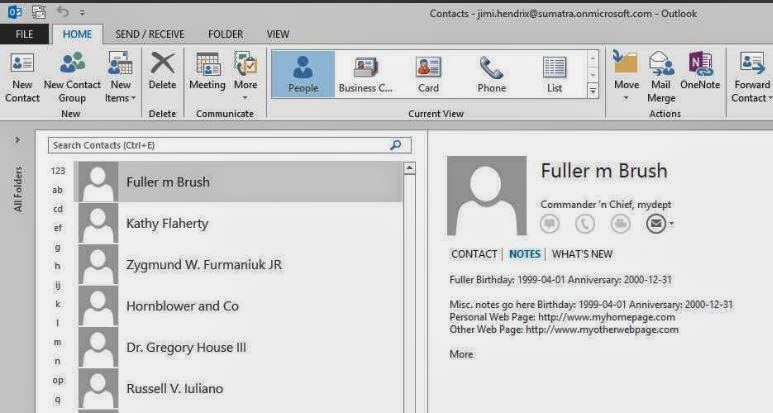
The Curious Case of the Outlook 2013 Contact Notes

UPDATE 9/4/14: Microsoft released a fix for this issue. See our Disappearing Contact/Calendar item body fixed in Exchange 2013 CU6 blog post


Found something weird with Outlook 2013.

This showed up in our Beehive to Exchange migration but it would not be limited to that particular situation.

Let's look at the results first.  All of these clients were accessing the exact same contact record on our Office 365 test system, though we have confirmed the same behavior with Exchange on-premises as well (no surprise there since this looks to be an Outlook 2013 bug).


Contacts and Notes (including some data we capture to the contact notes either because of EWS bugs or there's no other place to put it) show up fine in Outlook 2007 post-migration.


And they show up fine in Outlook 2010.


OWA and the Surface are no problem.


THEN we get to Outlook 2013:


PROBLEM!  Where did the Notes go?  The situation seems to only show up if you have a contact created using EWS.

This gets weirder because you can CREATE a contact with notes in either OWA or Outlook 2013 and it will properly display and edit in either.

This gets EVEN WEIRDER because in Outlook 2013 you get Notes displayed correctly in the PEOPLE view....
but not in any other view (Business Cards for example):

We think this is fairly definitive proof that Outlook 2013 has a bug in it.

Tuesday, April 15, 2014

Exporting Contacts to a CSV file using the EWS Managed API and Powershell

Exporting Contacts to a CSV file using the EWS Managed API and Powershell by Glen Scales will show you how to get this information OUT of Exchange server-side if you want to.

Normally we see people wanting to put this information INTO Exchange server-side, but there are legit reasons for wanting this capability:  archiving crucial customer data from former employees, saving vital contact data, legal discovery, migrating to Google, etc.

For the same reasons you will want to check out his scripts in Export the GAL or Address list with EWS to Vcards in 2013 MEC sample 1.

Arm yourselves with knowledge.


Tuesday, April 08, 2014

Mailbox Migration to Microsoft Exchange Performance Analysis

Microsoft recently gave guidelines on Mailbox Migration Performance Analysis.  

The article is a perfect example of how to drown in data before you come up with any concrete solutions -- if you ever come up with solutions.

Basically, read the article BACKWARDS to have it make more sense.

Look at all the reasons Office 365 can be slow (and there are a lot of them)

Then look at the reasons YOUR side might be slow (the suggestion of "get closer to our data center" is REALLY useful, thanks for that, guys!).

THEN consider putting (more of) this in YOUR OWN control with imapsync.  Might as well be frank, the Microsoft data center is a black box and will stay that way.  But you can seize more control over how your data is processed on your side of the wall.  Read our posts on email migrations to see how this works out in the real world.

And OF COURSE the Microsoft analysis and migration tools ignore calendars, tasks, and contacts, but we've all come to expect that from Microsoft.  That is why you have us at Sumatra.

Wednesday, April 02, 2014

Distribution Lists Now Working in MDaemon Calendar Migration

We've been on a mission to completely automate an MDaemon to Exchange migration.  Email, contacts, calendars, the works.  We'll tell you more about that later after it's fully field-proven.

In this case "the works" also means MDaemon private distribution lists (which in the language of Exchange/Outlook are called "groups") which we have added to our calendar migration application since (as glorified contacts) that is where they belong.

Post-migration in Office 365, it'll look like this:


We do the smart thing in this case:  if a contact on the list is on the legacy domain and needs to be mapped to a new domain or a different email, we automatically do that.  Users outside the legacy domain we leave alone.

Please note: In Exchange, users create distribution groups by linking to existing contacts (or contacts from Active Directory). This way, when a contact name/email address changes, the distribution group gets updated.  However, in the case of this migration, MDaemon does not provide any  indicator if the entry is an existing contact.  We don’t want to automatically create contacts because if they do exist, the user will see double contacts – something that will confuse them.  So communicate to your users that if an email address changes in the private group mailing lists, they will have to either manually edit and fix the name, or delete the name and link it to a previously created contact.

Thursday, March 27, 2014

Fully automating an #MDaemon to #MSExchange 2013 migration

One of our customers wanted to migrate from MDaemon to Exchange in stages (vs our typical "big bang".)  A staged migration is more delicate.  It requires you configure (and then re-configure) active directory accounts and Exchange mailboxes pre- and post- migration.  It's not hard, just a lot of steps. This called for a script!  And so, we did.

We have successfully field-proven that an MDaemon to Exchange 2013 on-premises migration can be fully scripted.

We're going to outline our approach:

First some background on the main show: email and calendars: 
  • For email we used and recommend imapsync.  It's an excellent, effective, and efficient product.
  • For calendars, tasks, contacts, and distribution lists we wrote our own application.
But a full migration methodology has to include more than just moving the data.

So before any email or calendars are migrated we take care of:
  • Reading the MDaemon user list (and passwords)
  • Provisioning users -- first as Exchange contacts, then as mail-enabled users
  • Re-configuring Outlook to point to your Exchange server and removing the MDaemon Outlook Sync. (Note: there are publicly available scripts.  But we found they don't work. After hours of debugging, we gave up and wrote our own.)
  • Pre- and Post-cut over scripting so that legacy emails are moved to the target system, and new emails redirected to the target system.
If you have a few dozen users, it's difficult to make this cost-effective and you might as well do it on your own  (Hint:  you can export PSTs from MDaemon, then import those PSTs into Exchange.)  Tedious and time-consuming, yes, but free.  This assumes your time is worth less than the cost of third-party migration tools.  If it takes as long to just DO it (apologies to Nike) as it does to deploy a third-party customized method, just do it.

If you have several hundred users and want to license our tools and methods, you can contact us.

Thursday, March 20, 2014

Transferring Palm Desktop Calendar and Contacts Data

Palm Pilots.  

There's nostalgia for you.  

But apparently the data can live on in their Desktop app.

The New York Times had an article on Transferring Old Palm Desktop Data (to Outlook) that is worth having around in case you find yourself in that situation.

Needless to say this is client-to-client.


Tuesday, March 18, 2014

Why Room 222?

Why we get asked, are our example resources called Room 222?

Millennials....jeesh.

Well, Orwell's Room 101 is a little too downbeat.

But a 1970's-era show that took place in an American public school has some positive connotations. You might recognize Michael Constantine (the principal) from My Big Fat Greek Wedding.


Please nobody ask us who this "Jimi Hendrix" guy is that we also use an example.  


Tuesday, March 11, 2014

Scripting Sumatra's MDaemon to Exchange calendar migration tool

We've turned the mCalReader application for migrating calendars from MDaemon to Exchange into a scriptable application.

So from the Command Prompt or PowerShell you can issue the commands

mCalReader /usersrc:  /userex:  /cfg: /undo

What each of these mean:
  • /usersrc:  the full email address of your source user on MDaemon.  e.g., zyg@sumatra.local
  • /userex:  the full email target address on Exchange.  e.g., zyg-furmaniuk@sumatra.onmicrosoft.com
  • /cfg:  the full path to the configuration file
  • /undo:  remove the data mCalReader inserted for this user.
So a typical scripted insertion for a user would be:
mcalreader 
  /usersrc:zyg@sumatra.local 
  /userex:zyg-furmaniuk@sumatra.onmicrosoft.com 
  /cfg:"C:\Docs and Sets\Administrator\Desktop\mCalReader\_Config_bCalReader.xml"

To remove Sumatra-inserted data:
mcalreader 
  /usersrc:zyg@sumatra.local 
  /userex:zyg-furmaniuk@sumatra.onmicrosoft.com 
  /cfg:"C:\Docs and Sets\Administrator\Desktop\mCalReader\_Config_bCalReader.xml"
  /undo

Each individual user using this method will get their own individual log file:

How do you set the Configuration file?  Simple: Via the user interface to the tool.  You CAN edit the XML if you want, it's pretty straightforward, but the interface exists to make it as simple as possible to test that access to Microsoft Exchange is working.


Tuesday, March 04, 2014

Create a Company Shared Contacts Folder in Office 365

We got asked to look into shared contacts folders in Office 365.

It turns out we did not need to do anything because some folks at Cogmotive have already done it.

Check out their article Create a company Shared Contacts folder in Office 365.  It's very detailed and thorough.

Tuesday, February 25, 2014

imapsync vs PST: Tonnage and Speed

Our first lab test of volume for imapsync resulted in an average throughput of 11.8 message/second, or 830 kb/second transferring 3013 messages with 358 skipped messages (I think that had to do with headers and the way we treated them).

We then went into the real world with a Boston-based firm and compared moving PSTs to moving via imapsync.

One PST for a user took 15 minutes to export client-side.  We did not even bother continuing to time after that.

Using imapsync (for email) and our mCalReader (calendars, tasks, contacts) we read that user AND TWO OTHERS and inserted all three in 8 minutes.

Or imapsync has at LEAST 6 times the throughput.

Our conclusion was that imapsync is MUCH faster.  Our further conclusion is that for purposes of migration PSTs fall far short of ideal.  PSTs really suck to tell you the truth.

In going through some of our previous posts, I discovered an interesting factoid that we published years ago when comparing client-side migration speed vs. server-side migration speed.  Server-side was 2-3 time faster on insertion than a client side migration just for calendars.


Sunday, February 23, 2014

MDaemon Mail to Exchange 2007 via Microsoft Transporter Suite

Gentle reader,

Today we will use Microsoft Transporter Suite for migrating email from MDaemon to Exchange 2007.

Why?  Obviously because we're going to get to moving calendars for this legacy product, but you only get to calendars if you're also doing email and we get asked about email, so we're documenting it here.

This is for on-premises Exchange migration to Exchange 2007 ONLY.  You want to go into Office 365, the read our previous article How to Migrate Oracle Beehive Email into Office 365 because the method will be the same.  

Why 2007?  Believe it or not Exchange 2007 is still out there, and we still get questions on it.  Might as well deal with reality.

We've also tested email migrations with imapsync (spoiler alert: imapsync is MUCH BETTER).

But it starts with Transporter since it's there, it's free, it's from Microsoft.  What is not to love? Quite a few things, actually, but free is a big draw.

First, download and install it.  But: WHERE should you download it and install it?


You won't even be able to get to the documentation (all in the form of help files) until after you install it -- so I'll cut to the chase:  you must have Exchange Recipient Admin rights and Exchange Impersonation rights on a computer with the Client Access server role installed for Exchange 2007. Later version of Exchange will of course require slightly different methods of setting these permissions (and we've blogged on those enough).

Refer to this section of the in-application help.


For MDaemon we're going to be using the Transporter for Internet Mail. The installer seems to already know we do not have Lotus Notes installed,


but  then very helpfully reminds us in case that was what we were really after.  

We're not in this case, so let's just accept the EULA and get this done.

Now we can actually execute the Transporter


You are now in a position to actually start defining which user mailboxes you will move.


But you need to give it a list in a CSV-- and you notice a distinct lack of a user manual. What should the format of this list be?


In one of the few times I will ever write that the Help Files are actually.... HELPful, I am bidding you to Click on Help and read them.


The format is then readily copied and uploaded.

My file looks something like this:

You'll see something like this and are ready to import.


Now migrate your email.