As an enterprise Exchange / Office 365 administrator you've probably run across some problems that drive you bug-house: security, backup, compliance, forensics, response time, .... the list drones on like a "Wonderwall" knock-off.
But one thing we can help you with is RESOURCES. There are a series of things you can do to make your resource management smoother from an end-user experience in Exchange. AND you can do them server-side.
The resources we're talking about here are the resources in a calendaring sense: Rooms and objects/services that are scheduled with meetings. (I mean, you KNOW this is what the whole blog is about, right?)
A (few) word(s) of warning on prerequisites here: it helps to have experience with PowerShell and Permissions. You are definitely going to need experience setting permissions for resources in Exchange.
We've blogged on all of this before, but this is the first time we've put it all together in one convenient post.
Let us begin.
Have you really thought through Delegate Access?
You may be using Delegate in the less effective way. In general you should use booking delegation instead of classic delegation.
See: Two ways to grant access to a Resource in #MSFTExchange
Explanation: Booking delegation makes it easier to access the resource should you need to (since classic delegation resources are disabled accounts by default) and you do not have issues with server vs. client-side rules and priorities.
This does mean having resource delegation managed by the administrator. As we proceed you'll increasingly see how this saves you hassle later on.
Do you ever have two meeting groups showing up for the same room?
You have had a double booking issue and didn't think you could do anything about it.
We KNOW you do because Double-Booked Meeting Rooms in Office 365 (and how to avoid them) is one of our most popular posts EVER!
But you can
If you just want to see how big an issue you have, use our reporting tool:
See: Callable PowerShell script to report on double booked resources in Exchange 2016 / Office 365
it's a PowerShell script that will tell you which resources have double-bookings.
If you want to proactively manage the issue on an on-going basis -- check out our solution to the problem:
Three Basic Ways of Dealing with Double-Booked Resources in the Sumatra cmdlet
Showing posts with label Delegate. Show all posts
Showing posts with label Delegate. Show all posts
Tuesday, August 21, 2018


Tuesday, March 06, 2018
New in Office 365: PowerShell and Delegate Permissions
If you've seen our earlier post Migrating Delegate Permissions: The 80/18/2 Rule, you know that in on-premises Exchange at least you can use the Add-MailboxFolderPermission cmdlet in PowerShell to set Delegate Access.
Now Microsoft is allowing you to use this capability on Office 365.
Sidebar: Is anyone else getting tired of discovering which cmdlets work in on-prem Exchange but not in Office 365 by Microsoft's tried-and-true method of "well, walk into the minefield and if you do not explode you'll be fine?"
Log into your Admin account and you should be able to see this update:

This lets you use effective scripting and server-side methods to handle Delegates.
As we always counsel: Be really careful how you set up Delegates in Exchange / Office 365. See our article: Two Ways to Grant Access to a Resource in MSFT Exchange. and use the "Booking" Delegation approach.
Now Microsoft is allowing you to use this capability on Office 365.
Sidebar: Is anyone else getting tired of discovering which cmdlets work in on-prem Exchange but not in Office 365 by Microsoft's tried-and-true method of "well, walk into the minefield and if you do not explode you'll be fine?"
Log into your Admin account and you should be able to see this update:

This lets you use effective scripting and server-side methods to handle Delegates.
As we always counsel: Be really careful how you set up Delegates in Exchange / Office 365. See our article: Two Ways to Grant Access to a Resource in MSFT Exchange. and use the "Booking" Delegation approach.
Tuesday, January 16, 2018
Migrating Delegate Permissions: The 80/18/2 Rule
From the Oracle Communication User Documentation,


Exchange has the following delegate options.
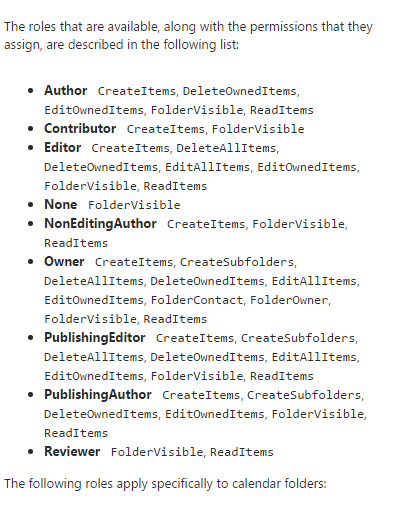
You should now see the problem about how you move from legacy to target and keep everyone happy.
Basically, you cannot possibly keep everyone happy if you try to migrate delegate permissions from Oracle to Exchange. The only sane solution is to let users set delegates themselves post-migration.
While it is possible to set Delegates via PowerShell in Exchange via Add-MailboxFolderPermission, Sumatra does not recommend migrating legacy delegate lists.
Basically, you cannot possibly keep everyone happy if you try to migrate delegate permissions from Oracle to Exchange. The only sane solution is to let users set delegates themselves post-migration.
While it is possible to set Delegates via PowerShell in Exchange via Add-MailboxFolderPermission, Sumatra does not recommend migrating legacy delegate lists.
- The access
model between legacy and target system are different enough that
any mapping is a “best guess.”
While this is fine for many users, it will lead to dissatisfaction
among an undetermined subset. And
long experience with migrations has shown us that user communities are
happier with a migration with clear rules and expectations universally
applied.
- Migrating
delegates automatically propagates a situation of “maximum access.” Now is a perfect time for end users to
review who has access to their calendars and re-think it.
- Use it as a
primary incentive to get users training on the new system.
Exception to the rule: Zimbra to Microsoft Exchange.
Since Zimbra consciously decided to rip-off emulate as much Microsoft functionality as explicitly and exactly as it could, you have a higher chance of success here. But please see comment #2 above about propagating a culture of "maximum access."
BEWARE:
Migrating Zimbra permissions to Exchange does not automatically set up menus for user access via Outlook or OWA!
You will likely perpetuate security issues for users who have changed roles and should no longer have access to some accounts! Your migration is the best time to review all of these!
To extract Zimbra delegate permissions:
Zmmailbox will give permissions for any mailbox or calendar you want as follows
./zmmailbox -z -m jimi@sumatra.local gfg /Inbox
./zmmailbox -z -m jimi@sumatra.local gfg /Calendar

This also works for tasks and contacts.
To save to a text file append '> permissions.txt'
See: https://wiki.zimbra.com/wiki/Ajcody-User-Management-Topics
Permissions exist as per the following table:
r = read
w = write
i = insert
d = delete
x = accept/decline invitations
a = administer
To insert Zimbra permissions into Exchange:
Use:
Add-MailboxPermission in PowerShell
Add-MailboxFolderPermission -Identity jimi@sumatra.local -User zyg@sumatra.local -AccessRights Editor
This will give Zyg editor delegate access to Jimi's mailbox.
And of course, you will need to manipulate or edit the text file you originally extracted from Zimbra. But this is not beyond high school programming or scripting, people.
You can also delegate other folders like jimi@sumatra.local:\Calendar and so forth.
See also: How to use Powershell to set delegate for user mailbox in Exchange 2010 and Office 365
Again, just because you can migrate permissions does not mean you should.
Seriously talk this over.
Migrating Zimbra permissions to Exchange does not automatically set up menus for user access via Outlook or OWA!
You will likely perpetuate security issues for users who have changed roles and should no longer have access to some accounts! Your migration is the best time to review all of these!
To extract Zimbra delegate permissions:
Zmmailbox will give permissions for any mailbox or calendar you want as follows
./zmmailbox -z -m jimi@sumatra.local gfg /Inbox
./zmmailbox -z -m jimi@sumatra.local gfg /Calendar

This also works for tasks and contacts.
To save to a text file append '> permissions.txt'
See: https://wiki.zimbra.com/wiki/Ajcody-User-Management-Topics
Permissions exist as per the following table:
r = read
w = write
i = insert
d = delete
x = accept/decline invitations
a = administer
To insert Zimbra permissions into Exchange:
Use:
Add-MailboxPermission in PowerShell
Add-MailboxFolderPermission -Identity jimi@sumatra.local -User zyg@sumatra.local -AccessRights Editor
This will give Zyg editor delegate access to Jimi's mailbox.
And of course, you will need to manipulate or edit the text file you originally extracted from Zimbra. But this is not beyond high school programming or scripting, people.
You can also delegate other folders like jimi@sumatra.local:\Calendar and so forth.
Again, just because you can migrate permissions does not mean you should.
Seriously talk this over.
Tuesday, February 21, 2017
Outlook won't remove Exchange Mailboxes: "This group of folders is associated with an email account. To remove the account...."
What a way to start the morning: Outlook added 25 account folders to my list of folders. (perhaps that's why it took four minutes to open.) Selecting a folder, then Right-click to close "Ted Kelly" brought up a message: "This group of folders is associated with an email account. To remove the account, click the File Tab, and on the Info tab click Account settings. Select the email account, and then click remove." (See image, below) Problem solved!?!
It does not work -- there are no accounts with that name to remove. A Microsoft Answer was not helpful. What changed?
Well, this weekend we tested the latest build of our Exchange-to-Exchange migration tool. I granted "Full Access" to several accounts to see how they migrated. Hmmmmm. I wonder if it's a feature from Exchange 2010 SP1:.... auto mapping of shared mailboxes to user’s Outlook 2010 profiles will remove a support headache. Ok. They swapped one headache and replaced with a migraine.
How do you un-automap the mailboxes?
Two ways:
1. Use Exchange Management Shell Powershell to turn automapping false:
Add-MailboxPermission -Identity
 |
| Failed to remove additional account folders |
Thursday, July 02, 2015
Two ways to grant access to a Resource in #MSFTExchange
A client asked us to explain the difference in the two ways for an end user to have "delegate" rights to a conference room. It is confusing -- Microsoft calls them both "delegation" and tried to explain them in a recent Exchange Team Blog post, Booking Delegation Vs. Classic Delegation.
Here is the summary:
1. Grant delegate permission using Outlook or OWA (aka "Classic Delegation")
2. Grant delegate permission using Exchange Control Panel (aka "Booking Delegation")
There are three problems with the "Classic Delegation" for conference rooms:
Sumatra recommends you assign room delegates using the "Booking Delegation" approach. You can either use Exchange control panel to assign booking delegates, or PowerShell. We prefer PowerShell.
There are several things you must do, depending upon how you want to handle room reservation requests
For auto-booking:
Ensure automated processing of meeting requests is set.
Example: Set automated processing for conference room 101B
Set-MailboxCalendarSettings cr_101b -AutomateProcessing AutoAccept
For a managed room:
1. Ensure automated processing of meeting requests is disabled.
Example, Grant delegate "riuliano" send as permissions on behalf of Room CR 101B
Add-ADPermission cr_101b -Trustee riuliano@sumatra.com -AccessRights "Send As"
Finally, You can read more about creating and managing room booking on Microsoft Technet.
Here is the summary:
1. Grant delegate permission using Outlook or OWA (aka "Classic Delegation")
2. Grant delegate permission using Exchange Control Panel (aka "Booking Delegation")
There are three problems with the "Classic Delegation" for conference rooms:
- First, since rooms are "disabled accounts", it's hard to log into them.
- Second, Classic Delegation creates two rules -- one visible (IPM Subtree folders), and one invisible (think NON-IPM Subtree folders.) When you change/remove a classic delegate, the hidden rule does not always get deleted and thus still remains in force. (Why? Outlook tries to be helpful, and when it sees there is a hidden rule, it uses the hidden rule.)
- Third, the classic delegation rules run at a higher priority than booking delegation rules. More ways to confuse administrators.
Sumatra recommends you assign room delegates using the "Booking Delegation" approach. You can either use Exchange control panel to assign booking delegates, or PowerShell. We prefer PowerShell.
There are several things you must do, depending upon how you want to handle room reservation requests
For auto-booking:
Ensure automated processing of meeting requests is set.
Example: Set automated processing for conference room 101B
Set-MailboxCalendarSettings cr_101b -AutomateProcessing AutoAccept
1. Ensure automated processing of meeting requests is disabled.
Example: Disable automated processing for conference room 101B
Set-MailboxCalendarSettings cr_101b -AutomateProcessing None
Set-MailboxCalendarSettings cr_101b -AutomateProcessing None
2. Decide on your room administrators, grant them permission, and allow the room to receive requests but NOT allow direct booking. (You and also play with Book-in and Request-In policies starting with this old but good Technet Article....this is beyond the scope of our post, though.)
Example: Allow Russ Iuliano to manage Auditorium meeting requests.
Set-CalendarProcessing Auditorium -AllBookInPolicy $false -AllRequestInPolicy $true -ResourceDelegates "Russ Iuliano"
3. Grant administrators permission to send on behalf of the room.
From time to time, you may notExample, Grant delegate "riuliano" send as permissions on behalf of Room CR 101B
Add-ADPermission cr_101b -Trustee riuliano@sumatra.com -AccessRights "Send As"
Finally, You can read more about creating and managing room booking on Microsoft Technet.
Thursday, May 21, 2015
Oracle Calendar Designate to #MSFTExchange Delegate Rights Migration
We at Sumatra are no strangers to the issues of delegate/proxy/designate migration into Microsoft Exchange 2013 / Office 365.
We just refuse to do it ourselves anymore.
Why? Because while we can give you the best possible technical solution, it is not always the best social or political solution for a given environment. Someone's gonna grumble. And we do not need that.
If YOU on the other hand can manage your organization sufficiently well for your purposes, we're fine with it.
Here's what you do.
Let's start at the back, where we insert calendar delegate rights into Exchange.
You need the command Add-MailboxFolderPermission in PowerShell.

Which means in Outlook looking at an Exchange server the user will see this in Calendar Properties:

We just refuse to do it ourselves anymore.
Why? Because while we can give you the best possible technical solution, it is not always the best social or political solution for a given environment. Someone's gonna grumble. And we do not need that.
If YOU on the other hand can manage your organization sufficiently well for your purposes, we're fine with it.
Here's what you do.
Let's start at the back, where we insert calendar delegate rights into Exchange.
You need the command Add-MailboxFolderPermission in PowerShell.
This format which can be executed in
PowerShell to set calendar permissions on Exchange. as we do here:

Which means in Outlook looking at an Exchange server the user will see this in Calendar Properties:

So working backwards, you need to get Designate permissions on the Oracle Calendar Server side.
Say you need to get Designate rights
for Russ Iuliano from OCS:
uniaccessrights -ls -grantor %1 -grantee
"S=Iuliano/G=Russ" -n 1 -p PASSWORD >>russ_rights.txt
|
The output of UNIACCESSRIGHTS is
relatively straight-forward to read:
"S=Iuliano/G=Russ"
Grantee: S=Iuliano/G=Russ/UID=riuliano/ID=257/NODE-ID=1
Designate
Right: CONFIDENTIALEVENT=VIEWTIME/CONFIDENTIALTASK=MODIFY/NORMALEVENT=
MODIFY/NORMALTASK=MODIFY/PERSONALEVENT=REPLY/PERSONALTASK=
MODIFY/PUBLICEVENT=NONE/PUBLICTASK=MODIFYEvent
Viewing Right: CONFIDENTIAL=ALL/NORMAL=ALL/PERSONAL=ALL
Grantee:
S=Whiplash/G=Snidely/UID=swhiplash/ID=260/NODE-ID=1Event
Viewing
Right: CONFIDENTIAL=NONE/NORMAL=ALL/PERSONAL=TIME
|
Depending on how you implement
your OCS Delegate to Microsoft Exchange Mapping you need to parse the UNIACCESSRIGHTS output into this
format which can be read in PowerShell to set calendar permissions on Exchange.
You need to execute this from PowerShell. Needless to say this command
should be called something like russ_rights.ps to execute in PowerShell.
To launch PowerShell: Start >
All Programs > Accessories > Windows PowerShell > Windows PowerShell right-hand
click and "Run-As administrator"
The parser we'll leave to you and write about in a future blog post.
Monday, February 23, 2015
Migrating live calendars into #Exchange -- Manage Delegate Forwarding
Those of you who have been diligently following the workings of the mighty Sumatra bullpen know that we're nutcases about making sure migrations go well.
One thing in a full state migration into Exchange is that you need to turn off Delegate forwarding if you want us to recreate the meeting responses.
So to turn off forwarding for an entire domain, you use Set-RemoteDomain, like this:
Set-CalendarProcessing -Identity user email@yourdomain.com -RemoveForwardMeetingNotifications $true
In the days of Exchange 2007/2010 you would have used set-mailboxcalendarsettings.
One thing in a full state migration into Exchange is that you need to turn off Delegate forwarding if you want us to recreate the meeting responses.
So to turn off forwarding for an entire domain, you use Set-RemoteDomain, like this:
Get-RemoteDomain | Set-RemoteDomain
-MeetingForwardNotificationEnabled $false
To turn off forwarding for an individual user use set-calendarprocessing:
Set-CalendarProcessing -Identity user email@yourdomain.com -RemoveForwardMeetingNotifications $true
In the days of Exchange 2007/2010 you would have used set-mailboxcalendarsettings.
Thursday, January 16, 2014
Useful Guided Walkthroughs for Calendaring in Office 365
Since one of our most popular posts ever is Shared Calendars in Exchange 2007 sp1, largely to show folks how to create shared calendars, I'm really happy that Microsoft is finally doing its own tutorials on some things that are just darned hard in Exchange. Well, in this case Office 365.
Check out the new Guided Walkthroughs Microsoft has put up.
Of special interest to those followers of our blog are:
Check out the new Guided Walkthroughs Microsoft has put up.
Of special interest to those followers of our blog are:
and
Of course the other walkthroughs on email and mailbox access will be useful to you as well.
Thursday, July 21, 2011
Prevent ghost delegates: find (and remove) delegates before terminating user
In a previous post, I outlined a process to find and remove Ghost Delegates from Exchange. (To recap: you turn a delegate a ghost delegate by deleting the account from AD without removing the delegate permissions in Outlook.)
In this post, I'll outline a process that avoids the ghost delegate problem (by finding and removing delegates BEFORE deleting the terminated user's account.) There are two steps: search AD, and then remove the delegates.
The hard part was finding all users that granted delegate rights to the "soon-to-be-deleted-account." I dredged up two "oldies but goodies:" LDIFDE and CSVDE to do a reverse-lookup for a terminated user using the "public delegate" fields:
- PublicDelegates "What mailbox(es) did I give delegate rights to"
- PublicDelegatesBL: "What mailbox(es) am I a delegate of"
Here are both commands:
LDIFDE.EXE -F delegateLDIFDE.TXT -D "OU=TestUsers,DC=myDC,DC=mydomain,DC=com" -L "name,mail,PublicDelegatesBL" -R "(&mail=termuser@mydomain.com)(PublicDelegatesBL=*))"
csvde -f delegateCSVDE.csv -s myDC -l "name,mail,PublicDelegatesBL" -r "(&mail=termuser@mydomain.com)(PublicDelegatesBL=*))"
Note: the LDIFDE command limits the scope of its work to the "OU=TestUsers;" csvde seaches the entire enterprise directory.
Here is an output from LDIFDE, in which we found all of PublicDelegatesBL of "Andre Admin" (it's just Big Boss):

Next, use Glen Scale's powershell code to confirm the terminated user is a delegate, and then remove that user from all accounts he was granted delegate rights. (The following commands were described in a prior post.) Step 7 is where the terminated user is removed as a delegate. I have shown how to display delegates and forwarding rules, just as an FYI.
- set-ExecutionPolicy RemoteSigned -force
- import-Module ./Messageops-Exchange.psd1
- $myCred=Get-Credential -Credential myservice@mydomain.com
- $newprofile=new-messageops.ewsprofile -identity:myservice@mydomain.com -exchangeversion:exchange2010_sp1 -casURL:https://mycas.mydomain.com -Credential:$myCred
- Get-MessageOps.MailboxDelegateReport-p:$newprofile -id:bigboss@mydomain.com
- Get-MessageOps.MailboxDelegateForwardingRules -p:$newprofile -id:bigboss@mydomain.com
- Remove-MessageOps.MailboxDelegate -p:$newprofile -id:bigboss@mydomain.com -DelegateAddress:termuser@mydomain.com
Notes: the "terminated" user is termuser@mydomain.com; the account that granted delegate rights was bigboss@mydomain.com.
I've pulled the URLs and commands into a text file that you can download to simplify typing....
--Russ
p.s.: I tried Exchange Management Shell, using a new Exchange 2010 commandlet: "Get-MailboxFolderPermission." But it was difficult to do a reverse-lookup (i.e., find all users who grated the "terminated user" permissions: I had to type that user's display name correctly or got no hits.... Plus, this commandlet isn't available for Exchange 2007 customers.
Here is how to get Big Boss' permissions:
Get-MailboxFolderPermission -Identity bigboss:\Calendar
FYI, you can set accessrights, particularly editor rights, between "big boss" and "her admin," that you can't do if your end users access their Exchange calendars via OWA (only):
Set-MailboxFolderPermission -Id:bigboss:\Calendar -User:herAdmin -AccessRights:Editor
The Ghost Delegate Exorcist
A Sumatra client called for help - a flood of NDRs were driving their Exchange server to its knees. The problem: a boss granted his admin delegate rights his calendar. Along with that, all calendar-messages were forwarded to to the admin. After the admin left the company, the admin's mailbox was deleted.
All was fine until someone invited the boss to a meeting. The boss received an NDR after the delegate forwarding rule sent that calendar message to the [now deleted] delegate. That NDR calendar message was sent back to the boss which got forwarded to the [still deleted] delegate, which generated another NDR......)
No big deal. They went into the boss' Outlook delegate and tried to remove the delegate, but couldn't -- Outlook reported the delegate was "(not found):"

The delegates are there but you can't delete them. Ghost delegates.....
The root cause: they didn't remove the delegate permissions and forwarding rules before they deleted the admin assistant's mailbox.
In this post, I'll talk about how to rid Exchange of those ghost delegates. In the next post, I'll talk about how to find and remove delegate permissions BEFORE you delete the terminated user's account.
For the curious, Glen Scales blogged about "How to deal with invalid delegates," and "Displaying delegate forward rules." Even better, Glen wrote some powershell code to exorcise our ghost delegate!
Here is what we did to remove the ghost delegates
-Russ
All was fine until someone invited the boss to a meeting. The boss received an NDR after the delegate forwarding rule sent that calendar message to the [now deleted] delegate. That NDR calendar message was sent back to the boss which got forwarded to the [still deleted] delegate, which generated another NDR......)
No big deal. They went into the boss' Outlook delegate and tried to remove the delegate, but couldn't -- Outlook reported the delegate was "(not found):"

The delegates are there but you can't delete them. Ghost delegates.....
The root cause: they didn't remove the delegate permissions and forwarding rules before they deleted the admin assistant's mailbox.
In this post, I'll talk about how to rid Exchange of those ghost delegates. In the next post, I'll talk about how to find and remove delegate permissions BEFORE you delete the terminated user's account.
For the curious, Glen Scales blogged about "How to deal with invalid delegates," and "Displaying delegate forward rules." Even better, Glen wrote some powershell code to exorcise our ghost delegate!
Here is what we did to remove the ghost delegates
- Download and install the Exchange Web Services Managed API
- Create a sub directory, and copy the Microsoft.Exchange.WebServices dll into the directory; Run Exchange Powershell (as administrator), and change to that sub directory.
- Set the execution policy, import the module, and create a credential variable (using your service account): set-ExecutionPolicy RemoteSigned -force import-Module ./Messageops-Exchange.psd1 $myCred=Get-Credential
- Next, define an exchange profile (as above, we provide our service account with impersonation or full access permissions. See our blog post on impersonation in Exchange 2007 or Exchange 2010), and point to our CAS server directly
$newprofile = new-messageops.ewsprofile -identity:mySVCacct@mydomain.com-exchangeversion:exchange2010_sp1 -casURL:https://mycas.mydomain.com -Credential:$myCred
- See the list of valid and invalid (ghost) delegates and rules:
Get-MessageOps.MailboxDelegateReport -p:$newprofile -id:bigboss@mydomain.com
Get-MessageOps.MailboxDelegatesInvalid -p:$newprofile -id:bigboss@mydomain.com
Get-MessageOps.MailboxDelegateInvalidForwardingRules -p:$newprofile -id:bigboss@mydomain.com - Finally, remove invalid forwarding rules, and THEN remove the delegates (in that order!)
Remove-MessageOps.MailboxDelegateInvalidForwardingRules.unsupported -p:$newprofile -id:bigboss@mydomain.com
Remove-MessageOps.MailboxDelegatesInvalid.UnSupported -p:$newprofile -id:bigboss@mydomain.com
-Russ
Friday, September 17, 2010
Exchange 2010 Calendar Permissions Using PowerShell
One of the Microsoft blogs did a great article on setting calendar permissions using PowerShell in Exchange 2010.
Their earlier article on setting Outlook Delegate permissions with RBACs is also worth reading for sites migrating into 2010.
Many thanks!
Their earlier article on setting Outlook Delegate permissions with RBACs is also worth reading for sites migrating into 2010.
Many thanks!
Wednesday, November 25, 2009
Oracle Calendar Server Designate to Microsoft Exchange Delegate Migration
Trying to get Outlook Delegate Permissions:


from Oracle Calendar Server Designate Access Rights

can be tough.
We just made the Oracle Calendar DESIGNATE to Microsoft Exchange DELEGATE migration simpler (and removed PFDAVAdmin from the equation, while it worked it was a complicated pain in the neck).
Now under the processing stage check box in our insertion code is an option called "Set Delegates"
It takes a converted designates export file, as we've previously told you how to build, and will set those according to these rules:
- Users must be VALIDATED
- NO delegates are set to see PRIVATE items on Exchange
- NO delegates are set to receive Meeting Invitations
- There is no UNDO for Delegates
Here is the “get-mailbox fl” command that shows Russ has been set as Zyg's delegate
In the database:
If Delegate is true then the user is assigned as an EDITOR
If ReadONLY is set to true, then the user is assigned as a REVIEWER
If ReadONLY is set to FALSE, then the user is assigned to AUTHOR
Here is the commandlet to WIPE OUT ALL DELEGATES, regardless of who set them:
get-mailbox -ResultSize unlimited where {$_.Servername -like "Server" -and $_.GrantSendOnBehalfTo -ne {}} Set-Mailbox -GrantSendOnBehalfTo $null
(Remember to change “SERVER” to your server name!)
We suggest you use this in your TEST environment for verification purposes.
Tuesday, January 20, 2009
Setting the Outlook Delegate Tab Entries in a Migration
As of January 2009 it is possible to set the Delegates in the Outlook Delegate Tab in a calendar migration. This will work for both an Oracle Calendar migration and a Meeting Maker migration. As is our practice for Delegate / Designate / Proxy migrations, we've built it off existing Microsoft-released and supported utilities.
Follow the procedure for PFDAVAdmin as we have previously documented (this sets Permissions on the appropriate folders).
1. Export your Active Directory data using CSVDE
csvde -f ad.csv -s SERVER -d "OU=Clients,DC=ex2007,DC=sumatra,DC=local" -l "dn,cn,displayname,sn,givenname,objectcategory,mailnickname,mail,homeMDB,distinguishedname,altRecipient,targetAddress"
Note: change the -s and the -d to represent your server and your AD
2. Import the data into the Database table AD_ExportUserList (if you have not already)
NOTES: The CSVDE output will:
· Have more columns of data than is used in the table
· A different order of columns. You must move columns in the output file so that the data align with the table
3. Run the macro M_OutputProxyForLDIFDE
4. Open a command window (i.e., DOS) , and run LDIFDE:
ldifde.exe -f proxy_delegates.ldf -i -s SERVER -k
where -s is the name of your server.
Result will be as follows for your Delegates (In Outlook menus via Tools-Options-Delegates Tab):
Follow the procedure for PFDAVAdmin as we have previously documented (this sets Permissions on the appropriate folders).
1. Export your Active Directory data using CSVDE
csvde -f ad.csv -s SERVER -d "OU=Clients,DC=ex2007,DC=sumatra,DC=local" -l "dn,cn,displayname,sn,givenname,objectcategory,mailnickname,mail,homeMDB,distinguishedname,altRecipient,targetAddress"
Note: change the -s and the -d to represent your server and your AD
2. Import the data into the Database table AD_ExportUserList (if you have not already)
NOTES: The CSVDE output will:
· Have more columns of data than is used in the table
· A different order of columns. You must move columns in the output file so that the data align with the table
3. Run the macro M_OutputProxyForLDIFDE
4. Open a command window (i.e., DOS) , and run LDIFDE:
ldifde.exe -f proxy_delegates.ldf -i -s SERVER -k
where -s is the name of your server.
Result will be as follows for your Delegates (In Outlook menus via Tools-Options-Delegates Tab):

For more information on using LDIFDE see:
Using LDIFDE to import and export directory objects to Active Directory
Please note: this will set READ-WRITE (MM Term) permissions only. In Outlook terms it is "Editor."
Why? Because LDIFDE does not let us set READ-ONLY (Outlook term: "Reviewer").
We do the best we can with the Proxy migration tools. In general for setting Delegates we really really really want to be using off-the-shelf Microsoft tools (less chance of an update that makes them obsolete).
Wednesday, January 07, 2009
Setting Default Permissions for Exchange Resources
December, 2008. The subject is migrating proxies from Meeting Maker. Among our clients in December were two sites each with 1000 users, about 100 of which were resources. One had 90,000 proxy objects, the other had 5,000.
Why the 1:18 ratio on what were otherwise similar data sets?
The one with 90,000 proxy objects in Meeting Maker wanted to give everybody in Outlook Delegate access to each resource. In round figures 100 resources times 900 people gives you 90,000 Delegates.
So we were looking at using our usual method for setting Delegates (which would take a long time).
But it's actually simpler than that.
Meeting Maker does not have a default level for giving EVERYONE access to a resource.
BUT Outlook DOES!

And PFDAVAdmin makes it easy to propagate these permissions centrally (so long as you have an Exchange Admin who's willing). In this case it's criminal not to use it.
You can set up an import file as we've documented before, using
\Everyone Reviewer
to provide read-only access.
Or (quoting liberally from the documentation for PFDAVAdmin),
I was going to start taking screen shots of how to do this exactly, when I said to myself, "Self, someone must have already done this."
And so they had. Thank Amit Tank whose FAQ: Give Calendar Read Permission on all Mailboxes - PFDavAdmin admirably takes you through this.
For international users, Set calendar permissions with PFDAVADMIN goes over how to filter for translated "Calendar" folders.
Why the 1:18 ratio on what were otherwise similar data sets?
The one with 90,000 proxy objects in Meeting Maker wanted to give everybody in Outlook Delegate access to each resource. In round figures 100 resources times 900 people gives you 90,000 Delegates.
So we were looking at using our usual method for setting Delegates (which would take a long time).
But it's actually simpler than that.
Meeting Maker does not have a default level for giving EVERYONE access to a resource.
BUT Outlook DOES!
And PFDAVAdmin makes it easy to propagate these permissions centrally (so long as you have an Exchange Admin who's willing). In this case it's criminal not to use it.
You can set up an import file as we've documented before, using
\Everyone Reviewer
to provide read-only access.
Or (quoting liberally from the documentation for PFDAVAdmin),
The Set Calendar Permissions option enables you to perform a bulk edit specifically to change permissions of the Calendar folder so that a single operation can modify the settings of thousands of users on a server. This is useful for changing the default permissions setting of the Calendar folder of all or many users, so that team members can view other member's calendars. Using Microsoft Office Outlook® enables changing only one user at a time, so the Set Calendar Permissions option is a good solution for this kind of task. In addition to changing the permissions of the Calendar folder, by using this option, a bulk-change also occurs on the permissions of the FreeBusy Data folder (hidden folder) of all the users on a server. If the FreeBusy Data folder permissions were not changed, the users will not be able to access another user's calendar.
I was going to start taking screen shots of how to do this exactly, when I said to myself, "Self, someone must have already done this."
And so they had. Thank Amit Tank whose FAQ: Give Calendar Read Permission on all Mailboxes - PFDavAdmin admirably takes you through this.
For international users, Set calendar permissions with PFDAVADMIN goes over how to filter for translated "Calendar" folders.
Wednesday, December 10, 2008
Migrating Oracle Calendar Permissions to Exchange Part 2 DIY
So you want to migrate from OCS to Exchange and you can handle your own data migration (i.e., you don't want live meetings or recreated recurrence patterns) but you still want to migrate permissions.
We'll tell you how you can accomplish that using free off-the-shelf tools from Oracle and Microsoft.
The process proceeds in two phases:
The connections between the OCS User Interface and the output are pretty clear.
You have now successfully extracted the data. Part 1 is complete.

So glad you asked. Running our friend PFDAVAdmin and looking at John Lennon,
We'll tell you how you can accomplish that using free off-the-shelf tools from Oracle and Microsoft.
The process proceeds in two phases:
- EXTRACT the permissions data from Oracle
- INSERT the permissions into Exchange
You may need to modify your user names between the first and second step, but if you're handling your own data migration this should not be too difficult. You're also going to have to write your own script to convert the output from the Extract phase to the input for the Insert phase. Since we get these requests from universities and they have lots of undergraduate computer talent that programs in between beer blasts we don't think this will be too difficult.
Extracting permissions data from Oracle Calendar Server
This is done using the OCS tool UNIACCESSRIGHTS. See the Oracle Calendar Reference Manual for your full set of options.
Let's take the example of John Lennon giving permissions to Jerry Garcia. 
Grantee: S=Garcia/G=Jerry/UID=Jerry.Garcia/ID=256/NODE-ID=1 Designate Right: CONFIDENTIALEVENT=REPLY /CONFIDENTIALTASK=NONE /NORMALEVENT=MODIFY /NORMALTASK=NONE /PERSONALEVENT=VIEWTIME /PERSONALTASK=MODIFY /PUBLICEVENT=MODIFY /PUBLICTASK=MODIFY |
You have now successfully extracted the data. Part 1 is complete.
Inserting permissions data into Exchange
This is done using PFDAVAdmin, whose formal name is the Exchange Public Folder DAV-based Administration Tool. You should check out our earlier postings on PFDAVAdmin. First let's say that on Exchange in Active Directory we already have a John Lennon who has created the same Calendar permissions for his co-worker Jerry Garcia. What would those look like in Exchange saved with PFDAVAdmin?
SETACL Mailboxes\john.lennon\Freebusy Data SUMATRA\jerry.garcia Editor NO SETACL Mailboxes\john.lennon\TopofInformationStore\Calendar SUMATRA\jerry.garcia Editor NO SETACL Mailboxes\john.lennon\TopofInformationStore\Tasks SUMATRA\jerry.garcia Reviewer NO |


Your step is to turn your UNIACCESSRIGHTS export into a file of this format that you can IMPORT into PFDAVADMIN to set the ACLs for Exchange. This is not very hard.
Of course it's in our test domain so everything is "SUMATRA," and "TopofInformationStore" should be "Top of Information Store" (but it breaks oddly in Blogger). You might also want to set the INBOX and OUTBOX permissions if you want them to respond to meeting requests for you.
NOTE: Be careful making any modifications to this file – it is very important that it be tab-delimited.
But you get the idea and there is enough information here for you to fly on your own now should you so choose.
Note the key things about this:- With your own scripting the cost to you is zero for additional tools
- It puts the permissions part of the migration entirely within your hands
Monday, December 08, 2008
Migrating Oracle Calendar Permissions to Exchange

Exchange and Oracle Calendar Server (OCS) are different in how they assign their Delegate / Designate permissions, but it’s less an apple vs. orange difference as a grapefruit vs. orange difference: both are noticeable more for their similarities than their pronounced differences relative to other calendaring systems.
There are two levels of permissions relevant to this discussion:
- Object level permissions (for individual calendar entries and tasks)
- User level permissions (e.g., to an administrative assistant or co-worker)
Object Level Permissions
Let’s deal with Object Level Permissions first since it’s a simpler comparison.
Oracle has four different permission levels for Calendar and Task objects:
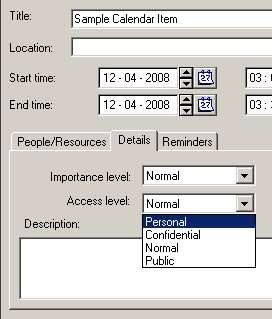
Outlook and Exchange have only a “Private” option: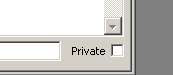
Translating these during a migration is pretty simple: “Personal” and “Confidential” in OCS map to “Private” in Outlook/Exchange. In the case of a Sumatra migration this happens as the data is being converted from OCS export format into our intermediate database.
User Level Permissions
OCS starts with object permissions and then allows the calendar owner to set permissions for other users based on those object permissions. Where OCS is Data-oriented in its permissions model, Exchange is Folder/User oriented. This leads us into the User Level Permissions.
Let’s take a look at the Oracle Calendar Server side.
John Lennon makes Jerry Garcia his Designate in Oracle Calendar: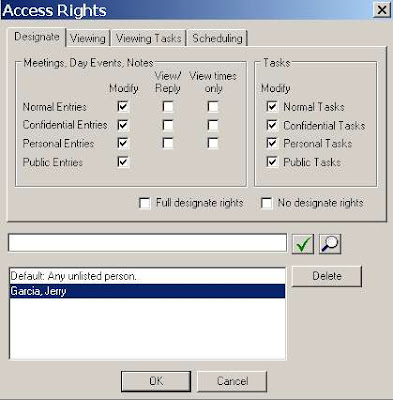
Here you have the only options relevant to a migration being: “Modify” and “View.”
Why is “View times only” not relevant for a discussion of calendar designate rights migration into Exchange? Because Exchange has no mechanism to deny access to free/busy information on a user basis.
Also note that in OCS a user has the option of specifying different access for different object types. That is – you can be more stringent with Confidential as opposed to Public data. This capability does not exist in Exchange. At all. So we’re going to revisit this issue later when we’re trying to decide how to migrate these permissions from OCS to Exchange.
So let’s turn our attention to Exchange and see what options there are when Zyg Furmaniuk makes Judy Morrison a Delegate via Outlook: You basically have three levels of access (other than the trivial case of None) you can grant:
Reviewer
Author
Editor
And the scope of these is pretty much on an Outlook Folder level (though in the case of Calendar you need to also grant access to the Calendar and the Free-Busy information). I.e., You can selectively grant access to the Calendar or the Email Inbox.
So you can think of “Modify” in OCS mapping to “Editor” and “View” mapping to “Reviewer” pretty easily.
Oracle Permission "Modify" maps to Exchange Permission "Editor"
Oracle Permission "View/Reply" maps to Exchange Permission "Reviewer"
Oracle Permission "View Times Only" is irrelevant in Exchange Permissions
But there remains a question: Given that OCS users have several gradations not available in Exchange – how do we do a mapping?
We at Sumatra at this point broke it down to as simple a question as we could put to the Administrators: “Do you want to give the maximum rights or the minimum rights?”
The way this manifests itself on our OraCalReader utility is the choice between ALL designate access rights set to Modify or ANY set to Modify.

Since the only other option is “Reviewer” in the target Exchange any rights not set to Modify are set to Reviewer.
Any View rights are automatically set to “Reviewer” rights since the object level access in OCS does not come into play in Exchange.
We do not set “Delegate can see my private items” on the Exchange side. Why? Because there’s enough else going on in a migration – folks can forget that they don’t want some information shared post-migration. Keeping private on means maximum security and you can always dial it to where you want it post-migration.
Other Exchange Delegate notes:
- Exchange has several possible clients (Outlook, Entourage, Outlook Web Access) at several different release levels with varying degrees of cross-platform and cross-version capability. Be sure to examine your own environment carefully.
- The Sumatra process only handles Calendar permissions, not Task permissions. Could we do Tasks? Yes. But you’d need to convince us it’s a valid business case.
- Regardless of the level of Delegate access set by the end user in Outlook, Delegate rights in OWA are read-only. See http://calendarservermigration.blogspot.com/2008/11/seeing-delegated-calendar-in-outlook.html
- MOST IMPORTANTLY: Using these methods to set Delegates in Exchange will overwrite any delegate rights a user has set prior to migration. Consider yourself warned.
The User Perspective
What does the user GETTING permission experience?
In OCS, Jerry Garcia as Designate of John Lennon simply selects File-Agenda-Open As Designate and sees the following:
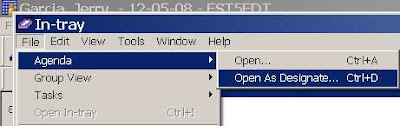
Jerry gets a convenient list of everyone he has permissions for:
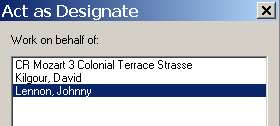
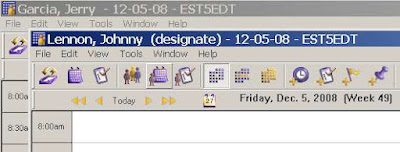
And it is very simple to orient yourself:
This user experience is VERY DIFFERENT in Microsoft Outlook. Here we use Outlook 2007 as our example. Zyg has given Judy permission to view his calendar.
In Judy’s calendar, she has no indication of this (except for a possible email notice from Zyg). In order to set up her client to see Zyg’s calendar she must first explicitly open it and select “Zyg” from the directory list:
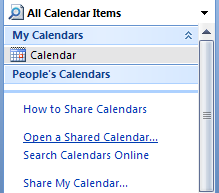
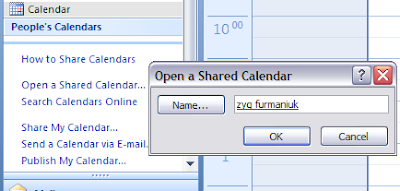 Once selected once the option to view is a check box.
Wednesday, November 19, 2008
Seeing a Delegated Calendar in Outlook Web Access
It's really easy to get to another person's calendar in Outlook or even Entourage if they've given you delegate access.
But if you want to view that same schedule via Outlook Web Access (OWA) you need to know a few things.
Check out this article: How to Use Outlook Web Access Web Parts.
You want user interface? Fuggedaboutit.
If "Russ" is Delegate of "Zyg" via Outlook on the "VM" Exchange 2007 server he needs to use this URL:
https://VM/OWA/zyg@sumatra.local/?cmd=contents&f=calendar
Then he gets to view Zyg's calendar (NB: Regardless of level of delegate access it's read only).
But if you want to view that same schedule via Outlook Web Access (OWA) you need to know a few things.
Check out this article: How to Use Outlook Web Access Web Parts.
You want user interface? Fuggedaboutit.
If "Russ" is Delegate of "Zyg" via Outlook on the "VM" Exchange 2007 server he needs to use this URL:
https://VM/OWA/zyg@sumatra.local/?cmd=contents&f=calendar
Then he gets to view Zyg's calendar (NB: Regardless of level of delegate access it's read only).
Friday, September 05, 2008
Just where the heck is all this Delegate information stored, anyway?
In this political season (in the USA at any rate), sometimes you need to "grabificate the bull by the horns and milkify that steer for all that he's worth." (No Dubya did not actually say this but work with me here, we're on a roll.)
So WHERE you might ask does all of this DELEGATE information actually live in Exchange?
The short answer is ALL OVER THE PLACE.
Here is the quick reference list:
So WHERE you might ask does all of this DELEGATE information actually live in Exchange?
The short answer is ALL OVER THE PLACE.
Here is the quick reference list:
- Folder Security Descriptors
- Active Directory
- The (infamous) NON_IPM_SUBTREE
- Server-side rules (for the special case of forwarding meeting invitations)
So to modify Delegate programmatically you need to take care of ALL of these.
Folder Security Descriptors
For Exchange 2000 and 2003, see Modifying Store Permissions in Exchange 2000 and 2003
For Exchange 2007 you use the Management Shell.
Every object (and a folder is an object with other objects potentially inside it) in the Exchange database has a security descriptor that determines who can access it. One of the main sources of confusion in all this is that from WebDAV Exchange can SEEM like it's a filesystem (remember the (in)famous M: drive?) but it never acts like one in any API. PFDAVAdmin does a great job at modifying access permissions for both Exchange 2003 and 2007.
Active Directory
Send-As permissions are kept in AD. The field publicdelegates contains the list of URLs of all users with access to the mailbox. Active Directory does a BIG favor here by maintaining backlinks in other users' publicDelegatesBL.
So by checking any user's publicDelegatesBL property, you can find out for whom they are a delegate. This was put to creative use in Listing Which Exchange Users Have or Are Delegates and Finding delegates in Active Directory (sic).
The perceptive among you will realize that if you are a delegate to someone and they have subsequently been removed from Active Directory you might still have some kind of zombie connection to them. Such is often indeed the case.
NON_IPM_SUBTREE
The file NON_IPM_SUBTREE/Freebusy Data/LocalFreebusy.EML which not surprisingly contains Free-Busy data (but be careful trying to read it) also contains three MAPI properties which define Delegates.
- x6844101F PR_DELEGATES_DISPLAY_NAMES
- x68451102 PR_DELEGATES_ENTRYIDS
- x686B1003 PR_DELEGATES_SEE_PRIVATE
Private items have PR_SENSITIVITY =2, Public items have PR_SENSITIVITY = 0. Confidential items have PR_SENSITIVITY =3, but Outlook does not do anything with Confidential items and the Exchange server does nothing to enforce Private items leaving this to the client (ever read me write that this was all designed and implemented by some committee somewhere?). So those of you looking to migrate this capability from Oracle Calendar Server where there is a client side distinction between Private and Confidential, you can migrate it, but it will do you no good.
BTW, Google has picked up on how useful it is to document MAPI tags.
Modifying the AD values has NO EFFECT on the values in the NON_IPM_SUBTREE. You have to take care of that separately. The incomparable Glen Scales blogged on how to in Accessing the NON_IPM_Subtree folders in Exchange Web Services .
Server-Side Rule
Like all SSRs this is in the INBOX for the user doing the forwarding (which means the client does not need to be running for it to be invoked, which is exactly what you want from an end-user perspective).
- x65EB001F PR_RULE_MSG_PROVIDER which should be "Schedule+ EMS Interface"
By way of comparison, PR_RULE_MSG_PROVIDER is
- "RuleOrganizer" for normal Outlook rules
- "Schedule+ EMS Interface" for delegation rule
- "MSFT:TDX OOF Rules" for OOF Wizard rule
- "MSFT:TDX Rules" for Public Folder rule
- "MSFT:MR" for Public Folder moderation rule
For managing rules in E2K7, check out http://msexchangeteam.com/archive/2008/04/14/448687.aspx and Glen has also already blogged on the topic.
I am hugely indebted to the work Ximian did in reverse-engineering all of this before it was absorbed by Novell.
Thursday, September 04, 2008
PFDAVAdmin and Calendar Delegate Permissions
Update on August 28, 2011: I noticed the popularity of this posting has risen A LOT lately. If you are in Exchnage 2010, ignore this and read our more recent post Exchange 2010 Calendar Permissions Using PowerShell.
In every generation a utility comes along which can address some of nastier sturm und drang of the harried calendar administrator trying to set up Delegate permissions. In ours it is PFDAVAdmin.
Now those of you who have been faithful followers of the vagaries of migrating Proxy or Designate information into Exchange/Outlook Delegate information will be a little surprised by what comes next: this method looks like it works, it looks like it works for both Exchange 2003 and 2007, and it looks like it takes way less time than any of our previous methods. AND it's all built around the off-the-shelf PFDAVAdmin.
So Step 1. is to Install PFDAVAdmin
It comes with its own documentation but there are also some good online examples and debugging:
http://www.msexchange.org/articles/PFDavAdmin-tool-Part2.html
http://technet.microsoft.com/en-us/library/bb508858(EXCHG.65).aspx
http://mostlyexchange.blogspot.com/2008/01/pfdavadmin-exchange-2007-and-v11-net.html
To run this in Exchange 2003 do not forget to use a service account with appropriate permissions:
http://support.microsoft.com/default.aspx?scid=kb;en-us;821897
For Exchange 2007 your usual migration service account should suffice.
Step 2.) Run the appropriate Database Query (from Sumatra) to generate an output text file. If you are already in the middle of testing your database migration you can ask us to take you through the query. Your output file will look like this:
Here riuliano makes zyg on domain VM his Reviewer (which corresponds to a Read-Only Proxy) and vice-versa. International users may have to modify this to translate "Calendar" as appropriate (i.e., Calendario, Calendrier, Kalender, Calendário). I do not know if PFDAVAdmin will work with 2-byte character sets.
Step 3
Open PFDAVADMIN. Connect to your Exchange server (you will need adequate Permissions to do this). Select Tools-Import and point to the output file above.
Step 4
PFDAVAdmin will set up all appropriate permissions to share calendars as per your Meeting Maker options.
The log file for PFDAVAdmin will contain any problems (which in our experience with this have usually involved permissions).
In every generation a utility comes along which can address some of nastier sturm und drang of the harried calendar administrator trying to set up Delegate permissions. In ours it is PFDAVAdmin.
Now those of you who have been faithful followers of the vagaries of migrating Proxy or Designate information into Exchange/Outlook Delegate information will be a little surprised by what comes next: this method looks like it works, it looks like it works for both Exchange 2003 and 2007, and it looks like it takes way less time than any of our previous methods. AND it's all built around the off-the-shelf PFDAVAdmin.
So Step 1. is to Install PFDAVAdmin
It comes with its own documentation but there are also some good online examples and debugging:
http://www.msexchange.org/articles/PFDavAdmin-tool-Part2.html
http://technet.microsoft.com/en-us/library/bb508858(EXCHG.65).aspx
http://mostlyexchange.blogspot.com/2008/01/pfdavadmin-exchange-2007-and-v11-net.html
To run this in Exchange 2003 do not forget to use a service account with appropriate permissions:
http://support.microsoft.com/default.aspx?scid=kb;en-us;821897
For Exchange 2007 your usual migration service account should suffice.
Step 2.) Run the appropriate Database Query (from Sumatra) to generate an output text file. If you are already in the middle of testing your database migration you can ask us to take you through the query. Your output file will look like this:
# ************************************************************************ # Created for PFDAVAdmin 2.8 # Friday, August 29, 2008 3:47:25 PM # ************************************************************************ # # This export format is only usable with PFDAVAdmin 2.0 and later. # # ************************************************************************ SETACL Mailboxes\riuliano\Freebusy Data VM\zyg Reviewer NT AUTHORITY\ANONYMOUS LOGON None NO SETACL Mailboxes\riuliano\Top of Information Store\Calendar VM\zyg Reviewer NT AUTHORITY\ANONYMOUS LOGON None NO SETACL Mailboxes\zyg\Freebusy Data VM\riuliano Reviewer NT AUTHORITY\ANONYMOUS LOGON None NO SETACL Mailboxes\zyg\Top of Information Store\Calendar VM\riuliano Reviewer NT AUTHORITY\ANONYMOUS LOGON None NO |
Here riuliano makes zyg on domain VM his Reviewer (which corresponds to a Read-Only Proxy) and vice-versa. International users may have to modify this to translate "Calendar" as appropriate (i.e., Calendario, Calendrier, Kalender, Calendário). I do not know if PFDAVAdmin will work with 2-byte character sets.
Step 3
Open PFDAVADMIN. Connect to your Exchange server (you will need adequate Permissions to do this). Select Tools-Import and point to the output file above.
Step 4
PFDAVAdmin will set up all appropriate permissions to share calendars as per your Meeting Maker options.
The log file for PFDAVAdmin will contain any problems (which in our experience with this have usually involved permissions).
Subscribe to:
Posts (Atom)