Showing posts with label resources. Show all posts

Tuesday, January 11, 2022

Omicron’s silver lining, or why this pandemic is a good time to migrate calendar data to Office 365.

If you've had a legacy calendar migration on your to-do list for a while -- the global pandemic is actually a really good time for it.

Why? You might ask. Short answer: conference rooms.  That makes no sense since everyone is working remotely.  Have the Sumatra guys lost it?

We’re going to share a secret about calendar migration for you today that will save you tons of future agony.

There are three groups you have to consider in a migration – CxOs, end users, and conference rooms.  Your most important calendars are the CxO’s.  Our tools migrate those correctly and with guest lists and responses intact.  

The next most important calendars are not your users – it’s your conference rooms.  

HUH? 

Sumatra has 20 years of real-world experience that users will accept disruption associated with data migration if you tell them in advance and apply the rules equally to everyone.  The exception to the rule is conference room bookings.  There will be hell to pay the second you mess with users' conference room bookings. 

Sumatra’s customer would usually chew on this for a few seconds and then go "Darn -- you're right!"  

With users working from home for the past year, there is minimal demand on the conference rooms, and therefor minimal risk in upsetting the proverbial apple cart.  Eventually there will be a return to the office, and that will complicate your future migration plans.   

So start your migration plans today and avoid the potential for future conference room migration headaches.

PS: in a future log post, we’ll talk about how to minimize the dreaded “double booking” found in conference rooms in Office 365 (we've been doing that for years, but somehow it's always a topic).

Tuesday, June 09, 2020

Corporate Meeting Resources in Office 365 in the Age of Social Distancing

So in the soda straw view of the world we see in calendaring, it was only a while before COVID-19 reared its protein-based heads in our direction.  (and yours, we assume!)

Specifically: how can we make sure we promulgate COVID-19 safety rules to personnel if we (when we) are allowed to authorize them to return to work in our physical locations?

Simplest way we came up with that does not involve any coding or need to involve your Office 365 Administrator is to create a Rule for your Resources, as shown in this screen capture.


The meeting organizer (and ONLY the meeting organizer) will then get an email directly from the resource in your standardized corporate language reminding them to observe safe meeting practices, as the following details show: 


This is the detail from Conference Room 222:


Easy-peasy.  And as you see it works whether you have your conference rooms as auto-accept or managed.

Do you have a zillion rooms?  This is script-able through Exchange Shell.  If you create a solution, please post it here and share it to benefit others!  


Tuesday, January 29, 2019

Conference Room Calendar Migration from Zimbra to Office 365

Our latest version of Zimbra to Office 365 calendar migration is also moving resource calendars fine.

So for instance a Zimbra resource calendar (Room_222), has a schedule that looks like this one week:

Comes into Office 365 looking like this:

Keep in mind this is also server-to-server so it's fast and much less hassle than going via PSTs.

Since this is a fast-flat migration we make this convenient on the side of the end user by including the information that the resource was booked in Zimbra.


Tuesday, October 23, 2018

Exchange online: Conference Room Provisioning changed to AutoAccept

A heads up for admins who plan to provision new resources in Exchange Online: the defaults will change from AutoUpdate to AutoAccept.  This change will occur on November 15, 2018.


What does this mean? It's another 80/20 rule: depends on the type of resources and if you are a new or existing customer.


For existing Office 365 customers:  
  • 80%: Most of our clients configure resources (rooms, equipment) as AutoAccept. If the user wants to book a room on a particular date/time, Exchange will book it if it's free. 
  • 20%: "Managed" rooms.  Those are the ones only specific users can book, or an admin has to approve. Examples are the Executive conference rooms, HR Interview rooms, the Auditorium, etc.  For those rooms, this will be a problem. 
For new Office 365 / Sumatra's Migration customers,
  • NO IMPACT:  For all migration customers, we recommended you set ALL of your rooms to either None or AutoAccept (depending upon the migration tool). You will replace the defaults.
To check:
Get-Mailbox -RecipientTypeDetails @("Equipment","RoomMailbox") -ResultSize unlimited | Get-CalendarProcessing | Format-Table-Property Identity, AutomateProcessing


See the MS announcement here: Exchange Online - calendar AutomateProcessing changes through PowerShell

Tuesday, August 21, 2018

Enterprise Exchange / Office 365 Resources: You can manage them better

As an enterprise Exchange / Office 365 administrator you've probably run across some problems that drive you bug-house: security, backup, compliance, forensics, response time, .... the list drones on like a "Wonderwall" knock-off.

But one thing we can help you with is RESOURCES.  There are a series of things you can do to make your resource management smoother from an end-user experience in Exchange.  AND you can do them server-side.

The resources we're talking about here are the resources in a calendaring sense: Rooms and objects/services that are scheduled with meetings.  (I mean, you KNOW this is what the whole blog is about, right?)

A (few) word(s) of warning on prerequisites here:  it helps to have experience with PowerShell and Permissions.  You are definitely going to need experience setting permissions for resources in Exchange. 

We've blogged on all of this before, but this is the first time we've put it all together in one convenient post.

Let us begin.

Have you really thought through Delegate Access?

You may be using Delegate in the less effective way.  In general you should use booking delegation instead of classic delegation.


See: Two ways to grant access to a Resource in #MSFTExchange

Explanation:  Booking delegation makes it easier to access the resource should you need to (since classic delegation resources are disabled accounts by default) and you do not have issues with server vs. client-side rules and priorities.  

This does mean having resource delegation managed by the administrator.  As we proceed you'll increasingly see how this saves you hassle later on.

Do you ever have two meeting groups showing up for the same room?

You have had a double booking issue and didn't think you could do anything about it.

We KNOW you do because Double-Booked Meeting Rooms in Office 365 (and how to avoid them) is one of our most popular posts EVER!

But you can

If you just want to see how big an issue you have, use our reporting tool:
See: Callable PowerShell script to report on double booked resources in Exchange 2016 / Office 365
it's a PowerShell script that will tell you which resources have double-bookings.


If you want to proactively manage the issue on an on-going basis -- check out our solution to the problem:

Three Basic Ways of Dealing with Double-Booked Resources in the Sumatra cmdlet

Tuesday, November 28, 2017

Prevent Double-Bookings in Office 365 Calendar

We keep getting Office 365 sites coming the blog with search terms something like "prevent double bookings in 365 calendar."  

Invariably they find our post Double-Booked Meeting Rooms in Office 365 (and how to avoid them)

Let's keep in mind this is usually a problem for conference rooms.  People are double-booked all the time and it's expected.
Lots of technical info there, but as with anything in calendaring you need to also put it into a social context.

The only ways to prevent double-bookings entirely in advance and at meeting creation time are:
  1. Disallow recurring bookings for resources
  2. Set the allowable conflict rate to 0%
  3. Make the resources go through a human gatekeeper
Now the social aspect of this:  Your users are probably going to balk at any of these.  And with good reason: 
  1. Recurring meetings are just so darned useful. 
  2. An allowable conflict rate of 0% is highly unrealistic
  3. Having someone in charge of each resource defeats the purpose of calendaring
This is also a big issue because there is no easy mechanism for individuals to scan ahead and see if there is a possible conflict on the horizon with their meetings.  One of my daughters actually has this problem with a recurring meeting at her organization.

This is what makes double-booking a thorny problem. 


It's configurable and customize-able for a variety of situations.  Since it's a cmdlet it seems to be making more headway with on-prem Exchange sites, but it there's demand for something entirely cloud-based we're happy to discuss the issue.

October 2022: We just updated our cmdlet for Modern Authentication.

Tuesday, May 23, 2017

Customizing the Sumatra Double Booking cmdlet

There are a simple ways to customize the Sumatra Double Booking cmdlet, and most of them involve a text editor.

Let's look at the messages.txt file to see what we can modify there.


The entire point is to separate out the text sent to meeting organizers to inform them of conflicts.

Separating this from the application gives you the ability to easily customize it for your workplace social environment or to translate it into a different language.

Any text editor will do, and note that there are specified place holders, such as "(1)" for Conference Room Name that are reserved for the cmdlet.

The text in comments tells you the circumstances that generate the message.  For example:

#Message to notify One organizer (the one that came in after the booking was made  -or- trumped by a VIP)

The vips.txt file is the list of the primary SMTP addresses of VIPs who get automatic preference when you invoke the VIPsGetBookingPreference flag.


As you can see from this example, Janis Joplin will get preference over all other users in that scenario.

Finally there is license.txt, the domain-specific license that allows you to execute the cmdlet in your environment.  Copy the license key you got from Sumatra into this file:


Monday, April 24, 2017

Download the Sumatra Double-Booking cmdlet

You can download the Sumatra Double-Booking cmdlet for Exchange / Office 365 in a .ZIP file from here.  The ZIP file also includes the documentation as a PDF.

You will need to contact us for a key if you want to try it out.

You can just report on double-bookings using our previously-released script.

Tuesday, April 18, 2017

Three Basic Ways of Dealing with Double-Booked Resources in the Sumatra cmdlet

There are three basic ways of automatically dealing with double-booked resources in the Sumatra cmdlet suDoubleBookedMeetings.
  1. You guys work it out. aka Alert both (all) parties
  2. The early bird gets the room.  aka First one who booked wins
  3. Rank has its privileges.  aka VIPs win.  (Unless there's two of them then see 1.)
Let's look at the cases for each of those with this real-world double-booked meeting in Room 222 which both Janis Joplin and Jimi Hendrix have booked.


You guys work it out
You could think of this as the kinder-gentler "We're going to inform you but not enforce any changes" option.

Using this command:
Get-suDoubleBookedMeetings -ExchangeVersion 2013 -EWSurl "https://outlook.office365.com/EWS/Exchange.ASMX" `
-PrimarySMTPAddress "room222@sumatra.onmicrosoft.com" `
-EmailOrganizers `
-ImpersonationAccount "ADMIN@sumatra.onmicrosoft.com" `
-Credential $LiveCred `
-bw 18 `
-licensefile "c:\users\ADMIN\Desktop\suDoubleBook\license.txt"

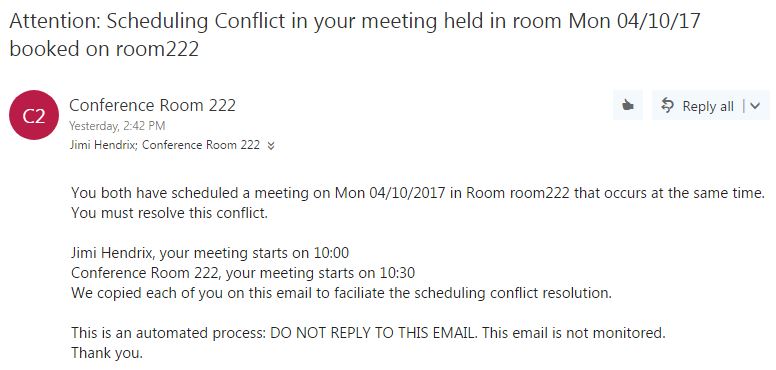
Each of them receives this notification and nothing is removed from the conference calendar.

The early bird gets the room:
using this command:

Get-suDoubleBookedMeetings -ExchangeVersion 2013 -EWSurl "https://outlook.office365.com/EWS/Exchange.ASMX" `
-PrimarySMTPAddress "room222@sumatra.onmicrosoft.com" `
-DeclineConflicts `
-ImpersonationAccount "ADMIN@sumatra.onmicrosoft.com" `
-Credential $LiveCred `
-bw 10 `
-licensefile "c:\users\ADMIN\Desktop\suDoubleBook\license.txt"

Since Jimi Hendrix booked this slot in Room 222 before Janis Joplin did, under this scenario the room goes to Jimi and Janis is notified (Note that this notification comes directly from Microsoft Exchange):


Rank has its privileges
But let's say that Janis Joplin is a VIP and Jimi Hendrix is not.  Then, using this command:

Get-suDoubleBookedMeetings -ExchangeVersion 2013 `
-EWSurl "https://outlook.office365.com/EWS/Exchange.ASMX" `
-PrimarySMTPAddress "room222@sumatra.onmicrosoft.com" `
-DeclineConflicts `
-VIPfile "c:\users\ADMIN\Desktop\suDoubleBook\vips.txt" `
-VIPsGetBookingPreference `
-ImpersonationAccount "ADMIN@sumatra.onmicrosoft.com" `
-Credential $LiveCred `
-bw 180 `
-licensefile "c:\users\ADMIN\Desktop\suDoubleBook\license.txt"


Janis gets the room and Jimi is declined by the conference room.  Note that this results in the exact OPPOSITE of the situation just described above.


We think this covers all the social hierarchy choices you should have to make with the conference room, but please feel free to let us know.

$LiveCred is a variable we've set up to store credentials to the Exchange server in PowerShell.  Check out our earlier postings if you're unsure how to do this.

Tuesday, April 11, 2017

How the Sumatra Double-Booking cmdlet works

October 2022: We just updated our cmdlet for Modern Authentication.

Free trial if you qualify and contact us.


First: you can always get help at the PowerShell prompt with:
get-help Get-suDoubleBookedMeetings

Let's say that we have the following calendar for Room 222:

Clearly there is some double-booking here.  

Keep in mind neither Jimi Hendrix not Janis Joplin have any way of knowing from their own calendars that a conflict is imminent.

If you execute the cmdlet in this way say a week before this is to unfold:
Get-suDoubleBookedMeetings -ExchangeVersion 2013 -EWSurl "https://outlook.office365.com/EWS/Exchange.ASMX" `
-PrimarySMTPAddress "room222@sumatra.onmicrosoft.com" `
-VIPfile "c:\users\Admin\Desktop\suDoubleBook\vips.txt" `
-DeclineConflicts `
-EmailOrganizers `
-VIPsGetBookingPreference `
-ImpersonationAccount "ADMIN@sumatra.onmicrosoft.com" `
-Credential $LiveCred `
-bw 10 `
-Verbose -Debug `
-licensefile "c:\users\Admin\Desktop\suDoubleBook\license.txt"

You will generate notifications to Jimi Hendrix that look like this:


Note also that we cover the case of a managed conference room where a Delegate might be putting appointments into the room calendar.  In this case even though the time is listed as FREE, we notify both parties.  We have no way of knowing WHAT is there, but there is the potential for conflict and we need to alert users to it.

If you want to get a little more proactive, we could define Janis Joplin as a "VIP" so that her meetings take priority over everyone else's.  Look at her conflict with Jimi Hendrix here:


We execute this command:

Get-suDoubleBookedMeetings `
-writeHTML `
-HTMLFile "c:\users\Admin\Desktop\suDoubleBook\MyHtml.html" `
-ExchangeVersion 2013 `
-EWSurl "https://outlook.office365.com/EWS/Exchange.ASMX" `
-PrimarySMTPAddress "room222@sumatra.onmicrosoft.com" `
-ImpersonationAccount "ADMIN@sumatra.onmicrosoft.com" -Credential $LiveCred -bw 16 `
-VIPFile ($myPath + "vips.txt") `
-VIPsGetBookingPreference `
-DeclineConflicts `
-licensefile "c:\users\Admin\Desktop\suDoubleBook\license.txt" 


And immediately the resource calendar looks like this:

And Jimi is notified that the resource has declined his request

We think this is a very elegant solution to the problem of managing double-booking in the real world.

Tuesday, April 04, 2017

Callable PowerShell script to report on double booked resources in Exchange 2016 / Office 365

Sumatra is recognized as the expert in Exchange Calendaring.  Even so, we were surprised at the sudden influx of requests for info on the problem of double booked conference rooms.

This subject is really trending on our blog.

We're taking a two-pronged approach that helps both Exchange end-users and Exchange Admins:

First, for the DIY crowd, we released a FREE PowerShell script to report on double bookings – open source, under the MIT license.  This blog post covers the script.

Second, for the enterprise, we will release a cmdlet that does everything the free version does, and a whole lot more:
  • Reports double booked meetings.
  • Sends email notification to each meeting organizer about those upcoming conflicts and ask them to resolve the conflict. 
  • Removes conflicts by cancelling conflicting meeting occurrences that Exchange allowed (even though there was already an existing meeting booked for that room/date/time.)
  • Preferentially keep conflicting bookings for company VIPs, and,
  • Designed to receive piped input from Exchange PowerShell cmdlets.

This cmdlet will be a paid, licensed version.

So first, the script.

It's available for download here.  We call it the Sumatra Double Booked Resources Reporting Script.  It's a text file, you'll need to rename it as a .PS1.  We do this or else your anti-virus software will get huffy. 

Successfully generating your report will give you results like this:

which will tell you the room with conflicts (not surprising since you have specified it, see below), the organizers, start and end date of the conflict and the number of other parties involved?

Number of parties?  Yes.  Note that one of the meetings above is triple-booked.

The text file is meant to be self-documenting, but in case you need some examples, here you go.

To get a report for a single resource (with some specific examples):

To generate a report for ALL resources, piped in from Get-Mailbox:
To generate reports for multiple rooms from a file:
This generates reports to the Exchange Administrator.

These examples in more general form are in a text file here.

Those of you who know PowerShell know you only need to import the function once per PowerShell session and then can invoke just the command suDoubleBookedMeetings.  If you did not know this before, you do now.

Looking to pull your Exchange Admin out of the loop on what to do with the information next?  

So glad you asked.

Watch this space for news of our cmdlet that automatically informs meeting organizers.

Sunday, March 05, 2017

Sumatra DBA: Double Booking Alert for Resources in Microsoft Exchange and Office 365

We started to get curious when what we thought was a dry, technical issue of double booked conference rooms became one of the most-read posts on our blog.  We DO pay attention to this stuff.

I refer of course to Double-Booked Meeting Rooms in Office 365 (and how to avoid them).

In the space-time-convenience continuum which is always a struggle with different views of how to optimize your Microsoft Exchange calendaring experience, Outlook and Exchange 2016 do a good job of warning you at booking time of future conflicts with resources and recurring meetings.

But 1.) time management is a very dynamic entity so conflicts creep in at awkward times and 2.) it's easy to procrastinate and then lose track of future conflicts.

The best summary of the problem was here:
We are not happy; our users are not happy.


This brought us down a path of looking at simple means to accomplish checking for double bookings and (more importantly!) to make fixing double bookings actionable on the part of end users! 

We found a serviceable script (from the author of the above quote) at Auditing Exchange Rooms for Double Bookings.

This has a few problems: it's very good at saying "yes there are double bookings in your resources, Mr. Administrator."   And then what the heck is supposed to happen?

We thought it best to let the Exchange Administrator do what they're good at (managing Exchange, installing and maintaining software, handling permissions) and to create a mechanism to get the information where it is most needed -- into the hands of he affected meeting organizers.

To this end we've created Sumatra DBA: Double Booking Alert.

Sumatra DBA: Double Booking Alert

We see the following advantages of our approach:
  • Installs and runs Server-side (no Outlook add-ins to distribute / manage)
  • Pro-active instead of reactive
  • No user training involved (notices come to the inbox of meeting organizers)
  • Admin configurable
  • Notifications configurable by site
Stay tuned for screenshots and examples.

Want in on early testing?  Contact us.

Tuesday, April 12, 2016

Double-Booked Meeting Rooms in Office 365 (and how to avoid them)

Update: November, 2017: If you look at newer postings you'll see details on our new method of finding and fixing double booked meetings.  If you want to try it, contact us with the size of your Exchange installation and your test domain (really, please don't start in production!).


Let's talk meeting rooms (aka resources) in Office 365 / Exchange 2016.

Why might you NOT "Allow repeating meetings" when configuring meeting room booking options?


Short answer: Because you have to be really careful.  Especially in Office 365 if you are working entirely from the user interface.


Note that for a one-time meeting where I have the Room 222 booked all day, attempting in Office 365 to book that resource does not even allow it to be seen as an option (this is a REALLY good thing):


But setting up a recurring meeting that overlaps with it easily allows me to book the conference room over a conflict, which might cause me as the meeting organizer some worry down the road.


To avoid this unpleasantness entirely, you need to use Set-CalendarProcessing via PowerShell.

To see what the settings on this resource are:
Get-CalendarProcessing -Identity "Conference Room 222" | fl

to set the ones that deal with conflicts/recurring items:

Set-CalendarProcessing -Identity "Conference Room 222" -AllowConflicts $true  -ConflictPercentageAllowed  80 -AllowRecurringMeetings $true  

Note that here we allow a conflict percentage of 80, which is below the threshold we set when setting up our demonstration.  If you want to allow no conflicts at all via auto-booking: 

Set-CalendarProcessing -Identity "Conference Room 222" -AllowConflicts $false -AllowRecurringMeetings $true  

The Microsoft manual for this goes into some good detail:
https://technet.microsoft.com/en-us/library/dd335046(v=exchg.160).aspx

And as always, be on the lookout for functionality that works in Exchange on-premises but differently in Office 365.

Side note: in our classic Sumatra Utilities for Exchange 2003 we included a double-booking checker, and this would not be hard to do but we hear little demand for it in Office 365/ Exchange 2016.

Addition January 23, 2017:
Folks, this post is insanely popular.  And we're wondering why.
Our initial motivation is to make sure people do not run into this during a calendar migration.  But the number of folks reading this regularly indicates it's a common problem.
Now -- Exchange does a VERY GOOD JOB of notifying a meeting organizer of exactly WHERE conflicts are at the time of booking.  Minimal personal organization skills then allow you to make modifications to individual instances to smooth things over.
Only thing we can figure out is that folks don't do this and they're looking for an upcoming "oops!  You have a conflict in that meeting room coming up!" notice.
Is that the case or is it something else?
We never learned anything listening to ourselves talk, so if you have something to share please let us know.

Tuesday, March 01, 2016

Oracle Meeting Scheduling Practices and Microsoft Exchange Best Practices

There are several common OCS meeting scheduling practices we need to document, so you, in turn, can educate your users about the differences between scheduling meetings in OCS and Exchange.
FIRST:  Oracle Calendar Server allows a user to organize a meeting and then remove themselves as an attendee.
THIS BEHAVIOR IS IMPOSSIBLE IN EXCHANGE! In fact if users manage to figure out how to do it’s one of the ways to really damage calendar data in Exchange.  We feel it our duty to recommend our customers adopt Microsoft Exchange best practices.  Thus, we do not recommend this behavior get replicated in Exchange.  To help you find and fix those meetings, we have integrated a pre-processing diagnostic step to both diagnose and remedy the issue. 
What it does is to re-create ICS files for the affected users and their meetings.  These files are then inserted using the standard Sumatra process.  The reports allow you to proactively notify or involve any critical calendaring users that they are going to be added to the meetings they though they removed themselves from.
How this works / what you need to do
1.   Export ALL your ICS files into a single directory.  You need to do this anyway for the migration process.
2.   If you create a separate directory that contains the oCalreader, please configure it, and point to the ENTIRE export of ICS files created in step 1
3.   Press the Organizer not Attendee button. Note: this might change in some versions of the tool.  You will have to check “Show Migration Steps”, and then you can click the Organizer button.
                                                        

4.       The tool outputs things in TWO directories
a.    The “Logfile” directory contains three files: the summary text file, along with the two CSV files for the Organizer not Attendee accounts.  These tell you which meeting organizers are affected by this situation.
b.    A subdirectory of the iCalData path gets created called “SpecialICSUsers”. The tool regenerates the ICS files that contain JUST those problem meetings -- and adds the organizer back to the meeting.  This is where the newly generated ICS files are stored


5.      It is possible there are situations where not all meeting organizers’ ATTENDEE record can be found.  Look in the SpecialICSUsers subdirectory, and see if there are any files that start with “_noattendee_”. You will have to figure out how to handle these users/meetings.  For example, if you might see a file called “_noattendee_sarah.jane.smith.ics”. You will have to either have the organizer to the meeting by hand, ask the organizer to add him/herself to the meeting in OCS and then re-export the ICS files, or choose not to migrate the meeting by deleting the files.
6.      oCalReader also checks for missing or invalid email information.  The resultant file is written to the “logfile path”, and called “AccountMissingOrInvalidEmail.txt”.  Read and act on these in advance of your cut-over into production.  For example:


CN=Clara Oswald:mailto:""
CN=Companions Conf Rm:mailto:""
CN=Companions Conf Rm:mailto:100000518943623636038552@email.invalid
CN=Medieval History Room:mailto:""
CN=Medieval History Room:mailto:182D1D7DF8E9ECA5E050C68489657375@email.invalid
CN=Martha Jones:mailto:""
CN=Martha Jones:mailto:100000250843623636038553@email.invalid
                                               
The logfile shows two users, Clara Oswald and Martha Jones, no longer have email addresses (are they terminated accounts?)  It also shows two rooms with problems.  You will have to add those rooms, “Companions Conf Rm” and “Medieval History Room”, to the resources map file to map those accounts to valid SMTP addresses.

7.       Finally to insert meetings where oCalReader has added the organizer back to the meetings, follow these steps:
a)       In the ocalreader directory include your accounts and resource mapping file(s)
b)       Edit the oCalreader Configuration
i.      Change the ICS data file directory to the “SpecialICSUsers” subfolder
ii.     Ensure there are no “limits” set
8.   Push “Read and Insert”

Note these assumptions:
  • We add the organizer back to the entire series to preserve recurrence patterns and the integrity of the meeting -- even if the organizer cancels their presence on some (but not all) of the instances.  Implication: There is the potential for duplicated meetings if some occurrences do have the organizer present.)
  • We set the organizer to ACCEPT the meeting (that happens by default).  Because the organizer removed themselves from the meeting we set their Free/BUSY status to FREE UNLESS the organizer has set the series to BUSY (then it becomes busy).
  • For the very curious this is a full ICS generated by this process.


SECOND:  Oracle Calendar Server allows resources to be meeting organizers.
In Exchange unmanaged public resources should NOT be organizers, but we relax this in certain cases to migrate data.  Why should unmanaged public resources not be meeting organizers?  Resource accounts are DISABLED by default.  As with many rules there are exceptions.  It is perfectly acceptable to have a room direct booked or managed by a delegate (for example: “CEO’s Private Conference Room”).
If you choose to allow direct booking into conference rooms:
Exchange, by default, strips both the subject and owner in the resource calendar
If you wish to retain this information (which is common in Oracle calendar)
You will need to execute this command for those resources: 
set-calendarprocessing  : -deletesubject: $False -addorganizertosubject: $True
This has privacy repercussions!  Showing subjects and organizers reveal potentially sensitive information, such as (these fabricated examples): “Interview James Bond to replace Provost”, “Implications of the 2019 500% Tuition Hike on staff reduction plans” booked in the “President’s Conference Room.” 
You have been warned.

If you do want to determine which resources organize meetings, the “Organizer as Attendee” component generates a file, ResourcesAsMeetingOrganizers, which lists of those accounts. For example, if the Doctor as a designate to the “Tardis Control Room” proposed a meeting on behalf of the “Tardis Control Room”, called “How to use the New Dimensional Portal Controls”, the ResourcesAsMeetingOrganizers file would contain:

CN=Tardis Control Room:mailto:doctor@drwho.timetraveller.org


THIRD:  Oracle calendar server allows resources emails to be assigned to a user account.
In Exchange resources have their own SMTP accounts.  OCS allows the OCS administrator to assign a designate/delegate email to the room (so messages are sent to him/her. For example, the Tardis Break room has an email address that belongs to Amy Pond

ORGANIZER;X-ORACLE-GUID=269167A2DA4992BCE050C6848965230C;CN=Tardis Break Room:mailto:amy.pond@drwho.timetraveller.org
                                                                      
What are your choices?
1)       REMOVE the email address from the OCS rooms and re-export the data;
2)       Leave it unchanged, the designate will become the organizer of the meeting, something that they will not be happy to see on their calendars.
3)       Figure out how big a problem this is.  The “Organizer as Attendee” button generates a file, ResourcesWithUserEmails , that shows the list. For example, the file would contain:
CN=Tardis Break Room:mailto: amy.pond@drwho.timetraveller.org