We put together a permissions debugging protocol for Exchange 2016 / Office 365 calendar migrations.
You can download it here.
Showing posts with label permissions. Show all posts
Showing posts with label permissions. Show all posts
Tuesday, April 05, 2016


Tuesday, February 09, 2016
Slow PowerShell Response to Get-Mailbox Debugging Protocol
Gentle reader of calendar migration intent,
Ms. Calendar received the following (edited slightly for clarity):
When setting up an impersonation account in our active environment the first few steps (editor's note: see The Cookbook Version of Exchange Migration Rights) go fine and then when I run this:
Get-Mailbox -resultsize unlimited | add-mailboxpermission -user OurDomainUser -accessrights: fullaccess -InheritanceType: All
It just sits there and never spits out any output. Yesterday I left it running for hours and eventually Exchange Management Shell closed itself but I still get the you don't have access to this email when trying to log in to any email accounts with the service account.
An interesting case which does occur!
There is not a lot of love across the community for Get-Mailbox performance and even less for practical actions to take. See: Performance issues with Get-Mailbox -Database PowerShell cmdlet and Count Mailboxes Per Database Faster.
Ms. Calendar received the following (edited slightly for clarity):
When setting up an impersonation account in our active environment the first few steps (editor's note: see The Cookbook Version of Exchange Migration Rights) go fine and then when I run this:
Get-Mailbox -resultsize unlimited | add-mailboxpermission -user OurDomainUser -accessrights: fullaccess -InheritanceType: All
It just sits there and never spits out any output. Yesterday I left it running for hours and eventually Exchange Management Shell closed itself but I still get the you don't have access to this email when trying to log in to any email accounts with the service account.
An interesting case which does occur!
There is not a lot of love across the community for Get-Mailbox performance and even less for practical actions to take. See: Performance issues with Get-Mailbox -Database PowerShell cmdlet and Count Mailboxes Per Database Faster.
Hats off and thanks to Russ and his team for this migration-centric debugging protocol:
It is probably a problem with "get-mailbox"
To test:
1) First try without any qualifiers:
get-mailbox
or limit it to 100
get-mailbox -resultsize 100
2) Second add the resultsize qualifier
Get-Mailbox -resultsize unlimited
Once they set a static limit instead of unlimited they were able to set impersonation on all accounts.
We have seen in instances where the performance is deplorable it's usually a problem getting the "join"s to work through AD. Keep in mind we're linking two separate AD actions here, Get-Mailbox and Add-MailboxPermission.
We have seen in instances where the performance is deplorable it's usually a problem getting the "join"s to work through AD. Keep in mind we're linking two separate AD actions here, Get-Mailbox and Add-MailboxPermission.
Where is the AD server located?
on the same subnet?
Are there access issues there?
To test if it's a connectivity issue, use PortQry to check for connectivity issues. You can download it from Microsoft. Test ports 389 (LDAP) and 3268 (Global Catalog). There are other possible ports, but these are the main ones used.
On the related issue when you have trouble with Exchange performance itself, see Troubleshooting performance issues with Exchange when RPC request spike high.
On the related issue when you have trouble with Exchange performance itself, see Troubleshooting performance issues with Exchange when RPC request spike high.
Wednesday, December 09, 2015
Can't send mail in Exchange 2016 OWA -- unsent mail in drafts folder
All was well in our Exchange 2016 environment until our recent scheduled server outage in which I applied the latest Microsoft security updates. Then mail stopped flowing: all messages ended up in the drafts folder. When this happened earlier in the year, I restarted the transport services:
# Restart When mail won't flow (gets stuck on OWA Drafts folder)
Restart-Service MSExchangeTransport
Restart-Service MSExchangeFrontEndTransport
No change. Looking in the event logs, I see a mountain of red. That is never a good thing! I notice event id 3003 -- MS Exchange BackEndRehydration. The NT Authority\System does not have token serialization permission.

Something got tightened down or changed. Our first suspect: permissions. According to Microsoft KB Article 2898571, this is often due to effective deny permissions on the ms-Exch-EPI-Token-Serialization user right on the computer object. Groups that are DENIED ms-Exch-EPI-Token-Serialization user right are:
* Domain Admins
* Schema Admins
* Enterprise Admins
* Organization Management
Check the group membership via group policy (run this cmdlet:)
gpresult /scope computer /r

UGH! the computer is now part of the Schema Admins security group. I removed the computer from that group and everything is fine.
For the sake of completeness, the Exchange computer should be a member of these five groups:
Domain Computers
Exchange Install Domain Servers
Exchange Servers
Exchange Trusted Subsystem
Managed Availability Servers
# Restart When mail won't flow (gets stuck on OWA Drafts folder)
Restart-Service MSExchangeTransport
Restart-Service MSExchangeFrontEndTransport
No change. Looking in the event logs, I see a mountain of red. That is never a good thing! I notice event id 3003 -- MS Exchange BackEndRehydration. The NT Authority\System does not have token serialization permission.

Something got tightened down or changed. Our first suspect: permissions. According to Microsoft KB Article 2898571, this is often due to effective deny permissions on the ms-Exch-EPI-Token-Serialization user right on the computer object. Groups that are DENIED ms-Exch-EPI-Token-Serialization user right are:
* Domain Admins
* Schema Admins
* Enterprise Admins
* Organization Management
Check the group membership via group policy (run this cmdlet:)
gpresult /scope computer /r

UGH! the computer is now part of the Schema Admins security group. I removed the computer from that group and everything is fine.
For the sake of completeness, the Exchange computer should be a member of these five groups:
Thursday, July 02, 2015
Two ways to grant access to a Resource in #MSFTExchange
A client asked us to explain the difference in the two ways for an end user to have "delegate" rights to a conference room. It is confusing -- Microsoft calls them both "delegation" and tried to explain them in a recent Exchange Team Blog post, Booking Delegation Vs. Classic Delegation.
Here is the summary:
1. Grant delegate permission using Outlook or OWA (aka "Classic Delegation")
2. Grant delegate permission using Exchange Control Panel (aka "Booking Delegation")
There are three problems with the "Classic Delegation" for conference rooms:
Sumatra recommends you assign room delegates using the "Booking Delegation" approach. You can either use Exchange control panel to assign booking delegates, or PowerShell. We prefer PowerShell.
There are several things you must do, depending upon how you want to handle room reservation requests
For auto-booking:
Ensure automated processing of meeting requests is set.
Example: Set automated processing for conference room 101B
Set-MailboxCalendarSettings cr_101b -AutomateProcessing AutoAccept
For a managed room:
1. Ensure automated processing of meeting requests is disabled.
Example, Grant delegate "riuliano" send as permissions on behalf of Room CR 101B
Add-ADPermission cr_101b -Trustee riuliano@sumatra.com -AccessRights "Send As"
Finally, You can read more about creating and managing room booking on Microsoft Technet.
Here is the summary:
1. Grant delegate permission using Outlook or OWA (aka "Classic Delegation")
2. Grant delegate permission using Exchange Control Panel (aka "Booking Delegation")
There are three problems with the "Classic Delegation" for conference rooms:
- First, since rooms are "disabled accounts", it's hard to log into them.
- Second, Classic Delegation creates two rules -- one visible (IPM Subtree folders), and one invisible (think NON-IPM Subtree folders.) When you change/remove a classic delegate, the hidden rule does not always get deleted and thus still remains in force. (Why? Outlook tries to be helpful, and when it sees there is a hidden rule, it uses the hidden rule.)
- Third, the classic delegation rules run at a higher priority than booking delegation rules. More ways to confuse administrators.
Sumatra recommends you assign room delegates using the "Booking Delegation" approach. You can either use Exchange control panel to assign booking delegates, or PowerShell. We prefer PowerShell.
There are several things you must do, depending upon how you want to handle room reservation requests
For auto-booking:
Ensure automated processing of meeting requests is set.
Example: Set automated processing for conference room 101B
Set-MailboxCalendarSettings cr_101b -AutomateProcessing AutoAccept
1. Ensure automated processing of meeting requests is disabled.
Example: Disable automated processing for conference room 101B
Set-MailboxCalendarSettings cr_101b -AutomateProcessing None
Set-MailboxCalendarSettings cr_101b -AutomateProcessing None
2. Decide on your room administrators, grant them permission, and allow the room to receive requests but NOT allow direct booking. (You and also play with Book-in and Request-In policies starting with this old but good Technet Article....this is beyond the scope of our post, though.)
Example: Allow Russ Iuliano to manage Auditorium meeting requests.
Set-CalendarProcessing Auditorium -AllBookInPolicy $false -AllRequestInPolicy $true -ResourceDelegates "Russ Iuliano"
3. Grant administrators permission to send on behalf of the room.
From time to time, you may notExample, Grant delegate "riuliano" send as permissions on behalf of Room CR 101B
Add-ADPermission cr_101b -Trustee riuliano@sumatra.com -AccessRights "Send As"
Finally, You can read more about creating and managing room booking on Microsoft Technet.
Monday, February 23, 2015
Migrating live calendars into #Exchange -- Manage Delegate Forwarding
Those of you who have been diligently following the workings of the mighty Sumatra bullpen know that we're nutcases about making sure migrations go well.
One thing in a full state migration into Exchange is that you need to turn off Delegate forwarding if you want us to recreate the meeting responses.
So to turn off forwarding for an entire domain, you use Set-RemoteDomain, like this:
Set-CalendarProcessing -Identity user email@yourdomain.com -RemoveForwardMeetingNotifications $true
In the days of Exchange 2007/2010 you would have used set-mailboxcalendarsettings.
One thing in a full state migration into Exchange is that you need to turn off Delegate forwarding if you want us to recreate the meeting responses.
So to turn off forwarding for an entire domain, you use Set-RemoteDomain, like this:
Get-RemoteDomain | Set-RemoteDomain
-MeetingForwardNotificationEnabled $false
To turn off forwarding for an individual user use set-calendarprocessing:
Set-CalendarProcessing -Identity user email@yourdomain.com -RemoveForwardMeetingNotifications $true
In the days of Exchange 2007/2010 you would have used set-mailboxcalendarsettings.
Tuesday, May 06, 2014
The Cookbook Version of Exchange 2013 Migration Rights
Gentle reader,
No matter what you want to do with calendars server-side in Exchange, you are going to need to become conversant in Exchange permissions. It's the devil's bargain: if you want to migrate all your calendar data and preserve its utility with guest lists and responses, then you need to be able to manage Permissions on your Exchange users.
So here we're putting out our best effort at a cookbook guide to Exchange 2013 permissions for migrations. Even though full-state calendar migrations will never be a purely cookbook operation we think this will get you there (and we have some field experience taking a couple of novices through it this way),
First: GLOBAL ADMINISTRATOR rights are NOT enough. These rights give you administration rights over Exchange / Active Directory, but they do not give you the rights to access mailboxes – which is what you will need to move in data and re-create state.
No matter what you want to do with calendars server-side in Exchange, you are going to need to become conversant in Exchange permissions. It's the devil's bargain: if you want to migrate all your calendar data and preserve its utility with guest lists and responses, then you need to be able to manage Permissions on your Exchange users.
So here we're putting out our best effort at a cookbook guide to Exchange 2013 permissions for migrations. Even though full-state calendar migrations will never be a purely cookbook operation we think this will get you there (and we have some field experience taking a couple of novices through it this way),
First: GLOBAL ADMINISTRATOR rights are NOT enough. These rights give you administration rights over Exchange / Active Directory, but they do not give you the rights to access mailboxes – which is what you will need to move in data and re-create state.
We’re going to take this in stages.
Background. Your ADMINISTRATOR account needs to be able to:
- Use REMOTE POWERSHELL to Log into Office 365
- Create a separate service account (this keeps your ADMIN function separate from your MIGRATION function)
- We call the Service Account EXSU. When you create it, make sure it is mailbox-enabled (you will be sending email on behalf of this account
- Grant EXSU three rights:
- Impersonation
- No throttling. This is relevant (i.e., in your control) only for on-premises Exchange. For Office 365 you will need to contact your Microsoft rep and explain what you are doing and ask throttling turned off for the duration of your migration.
- FULL ACCESS to mailboxes (this makes it easy to use OWA with this account to check the results for individual users in testing and migration)
Start POWERSHELL.
IMPERSONATION: You’re creating a ROLE called “_suImp8” that allows Impersonation and then assigning it to EXSU

THROTTLING: You’re creating a policy called SuThrottling Policy and then assigning
it to EXSU. (Otherwise Exchange 2013 might shut you off mid-migration)

FULL ACCESS: this grants access to ALL MAILBOXES in
your domain to EXSU.


Log in with your EXSU credentials.
You should see this:


You should see this:
This example shows access to Office
365. Obviously if you are going into
your on-premises or your own hosted domain, your URL and service name will be
different.
Now to test FULLACCESS go
to the URL box and modify it as I have with a user on your domain:
Hit ENTER
Now you will be prompted for your end user
mailbox credentials. Use the service
account (EXSU) and the password to access to the mailbox. This is where FullAccess comes in – you don’t
have to crack all of your end users' passwords!
NOW it should display your test users’
mailboxes in OWA
If all of these are successful, now you
can do a test insertion!
Congratulate yourself. Permissions are historically the worst learning curve in a migration.
Tuesday, February 18, 2014
MDaemon Mail to Exchange via imapsync
Gentle reader of migration mindedness,
Today we will use imapsync for migrating email from MDaemon to Exchange.
Why? Obviously because we're going to get to moving calendars for this legacy product, but you only get to calendars if you're also doing email and we get asked about email, so we're documenting it here.
Using imapsync will cost you all of 50 Euros.
Goodness, gracious it is worth it!
This application has significant advantages over other products:
We use the Windows version in our testing.
imapsync runs exclusively in the Command Prompt.
First off, please make sure you have enabled IMAP on your Exchange 2013 server.
Migrating from MDaemon to Office 365 looks something like this (if you use individual passwords for users).
imapsync.exe
--host1 147.1.41.1 --user1 zyg@sumatra.local --password1 "XXXX"
--host2 outlook.office365.com --user2 zyg@sumatra.onmicrosoft.com --password2 "XXXXX"
--ssl2
If you set up a service account with FullAccess, you can accomplish a migration with a command like this:
imapsync.exe
--host1 147.1.41.1
--user1 jimi.hendrix@sumatra.local --password1 "XXXX"
--host2 outlook.office365.com --port2 993 --sep2 /
--user2 jimi.hendrix@sumatra.onmicrosoft.com
--authuser2 riuliano@sumatra.onmicrosoft.com
--password2 "XXXXX" --ssl2
Note in the above, for an Office 365 target system we need to use the "--sep2 /" command.
Executing will give you some excellent statistics and feedback.

Other things to be aware of


Today we will use imapsync for migrating email from MDaemon to Exchange.
Why? Obviously because we're going to get to moving calendars for this legacy product, but you only get to calendars if you're also doing email and we get asked about email, so we're documenting it here.
Goodness, gracious it is worth it!
This application has significant advantages over other products:
- It is really simple to install and use.
- The "sync" in the title is serious. You can upload all the data from a user set during working hours and then cut over the incremental changes starting on a Friday after closing time.
- You can also use imapsync on a Linux environment as well as a Windows environment.
- It is all in your control as opposed to run through someone else's data center or through a major integrator looking to run up hours.
- It is very reasonably priced with the most liberal license I have seen.
We use the Windows version in our testing.
imapsync runs exclusively in the Command Prompt.
First off, please make sure you have enabled IMAP on your Exchange 2013 server.
Migrating from MDaemon to Office 365 looks something like this (if you use individual passwords for users).
imapsync.exe
--host1 147.1.41.1 --user1 zyg@sumatra.local --password1 "XXXX"
--host2 outlook.office365.com --user2 zyg@sumatra.onmicrosoft.com --password2 "XXXXX"
--ssl2
If you set up a service account with FullAccess, you can accomplish a migration with a command like this:
imapsync.exe
--host1 147.1.41.1
--user1 jimi.hendrix@sumatra.local --password1 "XXXX"
--host2 outlook.office365.com --port2 993 --sep2 /
--user2 jimi.hendrix@sumatra.onmicrosoft.com
--authuser2 riuliano@sumatra.onmicrosoft.com
--password2 "XXXXX" --ssl2
Note in the above, for an Office 365 target system we need to use the "--sep2 /" command.
Executing will give you some excellent statistics and feedback.
Other things to be aware of
Exchange Configuration Requirements:
Before you can run imapsync, you will have configure
Exchange for IMAP. This requires two steps.
Step 1: Start two IMAP4 services (and configure those
services to automatically start if you wish.)
By default, in Exchange 2013 the IMAP4 service(s) are
stopped:
To start those services: On the computer running the Client
Access server role:
1. Set the IMAP4 service to automatically start:
Set-service msExchangeIMAP4 -startuptype automatic
2. Start the Microsoft Exchange IMAP4 service.
Start-service msExchangeIMAP4
On the computer running the Mailbox server role:
1. Set the Microsoft Exchange IMAP4 Backend service to start
automatically.
Set-service msExchangeIMAP4BE -startuptype automatic
2. Start the Microsoft Exchange IMAP4 Backend service.
Start-service msExchangeIMAP4BE
In our case, the CAS and Mailbox server roles are on the
same box:
Step 2: Configure Exchange IMAP4 External Connection so
users can see (and thus use) the IMAP server settings
Use the powershell SET-IMAPSettings cmdlet, e.g.:
Set-ImapSettings -ExternalConnectionSetting {:993:SSL} .
This requires you restart IIS.
This is true even if you are working within the firewall
Thus in our case, the External Connection is the same as the
InternalConnection.
Finally, Verify things are working, using OWA’s
Options select Account, then pick the “Settings for POP or IMAP access” link.
For more information see: http://technet.microsoft.com/en-us/library/bb124489(v=exchg.150).aspx
These sample scripts for major migrations / multiple users will help you out a lot.
I really like the way this user lays out a basic sequencing for migrations including how and when to change your MX records.
And on the more than crucial need for advance planning and testing, please read this thread.
Thursday, January 03, 2013
Exchange 2010 Permissions Debugging Protocol updated
It being a new year and we having found a few new ways that Permissions could be problematic in Exchange, we've modified the Debugging Protocol.
The latest is available at this link: Exchange_2010_Permissions_Debugging_Protocol.pdf and supersedes all earlier versions.
The latest is available at this link: Exchange_2010_Permissions_Debugging_Protocol.pdf and supersedes all earlier versions.
Changes mainly affect the holiday cmdlet.
Thursday, August 16, 2012
Exchange 2010 Permissions Debugging Protocol (revised)
Everything in the calendar migration business is a moving target: the legacy systems, the target systems, and all the permissions and APIs associated with each side.
In tribute to the immortal Julia Child (whom I would occasionally see around Cambridge back in the day): bon
appétit!
As we never tire of saying Permissions are the biggest problem we see and the best responses to permissions issues are always fluid. Too fluid and complex for straight blogging. To better inform our migration clients we're now extracting the Permissions section of our manual and putting it as a PDF here.
We'll update the PDF as we need to -- the date in the footer being your indication that anything has been updated.
Saturday, April 14, 2012
Test insertion: 401 or 500 error resolution protocol
Suppose you're testing your permissions and get either a
‘500’ or a ‘401’ error.
Use the following table to sort those issues
out.
|
HTTP
Response |
Most Likely Issue
|
Solution
|
|
500
|
The "test user" does
not exist in Exchange
or
is not mailbox enabled
|
Verify account exists in the
domain, it is enabled, a mailbox user (try to access the account in OWA
using the service account credentials)
|
The "SERVICE
ACCOUNT" cannot impersonate the "test user"
|
Verity there is a
management_role assignment "ApplicationImpersonation" (Ex10) or
ExtendedRights:"ms-Exch-EPI-Impersonation","ms-Exch-EPI-May-Impersonate"
(ex07) for the SERVICE ACCOUNT that is applied to the server or the user you
are attempting to test.
|
|
|
401
|
BASIC authentication is not
enabled for the EWS virtual directory in IIS
|
Set Basic authentication in IIS;
remember to restart IIS
|
|
The "SERVICE
ACCOUNT" is not authorized to submit requests to the CAS Server
|
Is this the account you granted
impersonate rights to? Are the creds correct? Paste the "ews
url" into a browser. Enter the service account creds, when
prompted. Do you see an EWS WSDL page?
|
Start with IIS Basic authentication on the
EWSvirtual directory. It’s the easiest to see / fix.
Wednesday, March 21, 2012
Shared Mailboxes -- Warning Will Robinson!
One of the new features in Exchange 2010 Sp1 contained a client side feature that enabled auto mapping of shared mailboxes to user’s Outlook 2010 profiles.) This should be a major win for the shared mailboxes (e.g, IT Vacation Calendar, Helpdesk Coverage, etc.....) AutoMapping allows the "delegate" to simply open Outlook and *poof* there is the shared calendar. No more navigating the GAL! No more support headaches (at least in this area.)
In fact, Steve Goodman has written a step-by-step approach in his blog post Auto-Mapping shared mailboxes in Exchange 2010 Sp1 with Outlook 2010 and Outlook 2007.
There is a caveat, though. What happens if you have users who do not want the mailboxes they "share" to show up in their Outlook? I hit this issue, and have blogged about how to remove automapping.
If you automatically populating shared mailboxes in end user's calendrs is something you want, consider the implications from of a shared calendar showing up in an end user's calendar -- and leaving the end user no facility to remove those mailboxes.
In fact, Steve Goodman has written a step-by-step approach in his blog post Auto-Mapping shared mailboxes in Exchange 2010 Sp1 with Outlook 2010 and Outlook 2007.
There is a caveat, though. What happens if you have users who do not want the mailboxes they "share" to show up in their Outlook? I hit this issue, and have blogged about how to remove automapping.
If you automatically populating shared mailboxes in end user's calendrs is something you want, consider the implications from of a shared calendar showing up in an end user's calendar -- and leaving the end user no facility to remove those mailboxes.
Remove an "AutoMapped" Mailbox from Outlook 2010
My Outlook takes forever to open. I've finally figured out why: I have added too many shared mailboxes that Outlook has to open. Only I don't remember adding them. Time to to remove them. I right-hand click on the shared calendar and "remove calendar." Outlook throws this error message: ("The group of folders is associated with an e-mail account. To remove the account, click the File Tab, and then the Info tab, click Account Settings. Select the e-mail account and then click Remove.)

If the solution were only that easy. This is a shared mailbox that I have FULLACCESS to; there is NO EMAIL account in my profile.
The contributor: (or "feature") is "automapping!! (Here is how to set automapping.) The solution, for EXCHANGE 2010 Sp2, is to DISABLE AUTOMAPPING! Here are the powershell commands taken from a Micosoft Technet forum:
Disable automapping between "shared mailbox" and "delegate":
Add-MailboxPermission "Shared Mailbox" -User -AccessRights FullAccess -AutoMapping:$false
If you want to set it on all the mailboxes:
$mailbox = Get-Mailbox
$test = $mailbox |
Foreach {Add-mailboxPermission $_.Name –User ‘administrator’ –AccessRight FullAccess –Automapping $false}
That's it!
Russ

If the solution were only that easy. This is a shared mailbox that I have FULLACCESS to; there is NO EMAIL account in my profile.
The contributor: (or "feature") is "automapping!! (Here is how to set automapping.) The solution, for EXCHANGE 2010 Sp2, is to DISABLE AUTOMAPPING! Here are the powershell commands taken from a Micosoft Technet forum:
Disable automapping between "shared mailbox" and "delegate":
Add-MailboxPermission "Shared Mailbox" -User
If you want to set it on all the mailboxes:
$mailbox = Get-Mailbox
$test = $mailbox |
Foreach {Add-mailboxPermission $_.Name –User ‘administrator’ –AccessRight FullAccess –Automapping $false}
That's it!
Russ
Wednesday, November 03, 2010
Exchange 2010 Permissions for Migration

Impersonation has nothing to do with Frank Gorshin or Rich Little.
It's the permission you need to give your service account to execute a full-state calendar migration.
It's the permission you need to give your service account to execute a full-state calendar migration.
Create a managementRoleAssignment:
new-ManagementRoleAssignment
-Name:_suImp8
-Role:ApplicationImpersonation
-User:'mysvcaccount@mydomain.com'
If you have to ask where you're doing this, please go to your Exchange Administrator.
Monday, October 26, 2009
FullAccess fails with the error: The specified folder could not be found in the store.
I have been banging my head against the Exchange 2007 brick wall for the last month over the error: "The specified folder could not be found in the store."
Sumatra's conference room analysis tool's Exchange Web Service calendar folder "FindItem" request failed for about 5% of the rooms at one client. Other clients do not have this problem! The service account had FullAccess to all rooms. All conference rooms were on the same Exchange mailbox server, in the same OU, configured to autoaccept. Some had delegates, some did not.
The client could use the service account credentials to access the calendars via OWA. Was it a corrupted meeting? We changed FindItem's interval. No luck. Was EWS timing out over a large mailbox? Increased the HTTP timeout. No luck. Our FindItem requet uses the DistinguishedFolderID. We called GetFolder to find the FolderID. It failed on the inbox with the message "The specified object was not found in the store", and for the calendar folder with the message "The specified folder could not be found in the store".
Ahha! The permissions were not inherited. We added "InheritanceType: All" and it worked. Here is the syntax:
Get-Mailbox -filter {isResource -eq $True} -Resultsize unlimited
Add-MailboxPermission -User: xxxx -AccessRights: FullAccess
-InheritanceType: All
Sumatra's conference room analysis tool's Exchange Web Service calendar folder "FindItem" request failed for about 5% of the rooms at one client. Other clients do not have this problem! The service account had FullAccess to all rooms. All conference rooms were on the same Exchange mailbox server, in the same OU, configured to autoaccept. Some had delegates, some did not.
The client could use the service account credentials to access the calendars via OWA. Was it a corrupted meeting? We changed FindItem's interval. No luck. Was EWS timing out over a large mailbox? Increased the HTTP timeout. No luck. Our FindItem requet uses the DistinguishedFolderID. We called GetFolder to find the FolderID. It failed on the inbox with the message "The specified object was not found in the store", and for the calendar folder with the message "The specified folder could not be found in the store".
Ahha! The permissions were not inherited. We added "InheritanceType: All" and it worked. Here is the syntax:
Get-Mailbox -filter {isResource -eq $True} -Resultsize unlimited
Add-MailboxPermission -User: xxxx -AccessRights: FullAccess
-InheritanceType: All
Monday, September 28, 2009
500 errors on test insertion into Exchange 2007?
When you get a "500" error on validation or a test insertion, please verify your:
- CAS/MBX boxes are members of Windows Authorization Access Group
- Impersonation permissions stuck (and are not denied) through Active Directory Sites & Services
- Service Account is NOT a member of any Exchange Admin Group/Domain Admin group
Saturday, July 25, 2009
BlackBerry Permissions and Exchange Server-Side Holiday insertion
So remember a few days ago when we told you about a great simplification in setting up permissions?
Basically, and you should not be too surprised at this, the permission for BES admin are really really close to the permissions necessary for inserting holidays or running a full-state calendar migration.
Check out this post:
http://forums.crackberry.com/f50/exchange-2007-bes-install-guide-942/
which advises setting permissions as follows:
And then tells you to follow up with:
Basically, and you should not be too surprised at this, the permission for BES admin are really really close to the permissions necessary for inserting holidays or running a full-state calendar migration.
Check out this post:
http://forums.crackberry.com/f50/exchange-2007-bes-install-guide-942/
which advises setting permissions as follows:
get-mailboxserveradd-exchangeadministrator
BESAdmin –role ViewOnlyAdmin
get-mailboxserveradd-adpermission –user
BESAdmin –accessrights ExtendedRight –extendedrights Send-As, Receive-As,
ms-Exch-Store-Admin
And then tells you to follow up with:
Open Active Directory and from the View menu select "Advanced Features". Then
go to each user that will be added to the BES and open their properties, go to
the security tab and add the user BESadmin and add the security permission "Send
As". (This will overcome some MS patches that prevent BES sending emails).
Methods are available to add BESadmin "Send As" rights to all users if required
but this method ensures only the required users have permissions added.Make BESadmin a local Administrator of the server where you will be
installing the BES software. This is done by right mouse clicking my computer
and selecting “Manage”. From Computer Management expand “Local Users &
Groups” and select Groups. From Groups double click “Administrators” and add
BESadmin.
This is pretty much what we tell you to do in setting up a service account for running a Sumatra migration or inserting holidays, checking for broken meetings, or running the "terminated user" option in our code.
If you do not have a specific service account set up yet, this is a good place to start.
Tuesday, July 21, 2009
Server-side holiday insertion in Exchange 2007 - example
Well yes, we did go ahead and add the server-side holiday insertion into our mainstream migration code for Exchange 2007.
And we even field-tested it at a site in a mythical place called Canada.
This is a (slightly revised for purposes of pedagogy) holiday file, showing some of the flexibility of our approach. Notice you can have holidays which show as Free "F" or Busy (abbreviation is left as an exercise to the reader) so that our Canadian cousins can list USA holidays as information for everyone in their company, but make sure the time shows as Busy (i.e., do not book then) for Canadian holidays on their calendars.
And we even field-tested it at a site in a mythical place called Canada.
This is a (slightly revised for purposes of pedagogy) holiday file, showing some of the flexibility of our approach. Notice you can have holidays which show as Free "F" or Busy (abbreviation is left as an exercise to the reader) so that our Canadian cousins can list USA holidays as information for everyone in their company, but make sure the time shows as Busy (i.e., do not book then) for Canadian holidays on their calendars.
 In an example of instant karma, the test site told us of a wonderfully simple short cut to permissions in setting up insertion (for those of you who have not been through a migration) based on BlackBerry Enterprise Server permissions, which we'll blog on separately.
Please note that this has the following advantages:
- It's run server-side with no user intervention
- It is scriptable from the DOS command line
- It's reversible, i.e., we built in UNDO capability for those occasional accidents
- Handles multiple time zones
Any sites who have been through a migration with us are welcome to use this capability at no charge for Exchange 2007. Just drop us a line if you do not have the latest code.
Thursday, September 04, 2008
PFDAVAdmin and Calendar Delegate Permissions
Update on August 28, 2011: I noticed the popularity of this posting has risen A LOT lately. If you are in Exchnage 2010, ignore this and read our more recent post Exchange 2010 Calendar Permissions Using PowerShell.
In every generation a utility comes along which can address some of nastier sturm und drang of the harried calendar administrator trying to set up Delegate permissions. In ours it is PFDAVAdmin.
Now those of you who have been faithful followers of the vagaries of migrating Proxy or Designate information into Exchange/Outlook Delegate information will be a little surprised by what comes next: this method looks like it works, it looks like it works for both Exchange 2003 and 2007, and it looks like it takes way less time than any of our previous methods. AND it's all built around the off-the-shelf PFDAVAdmin.
So Step 1. is to Install PFDAVAdmin
It comes with its own documentation but there are also some good online examples and debugging:
http://www.msexchange.org/articles/PFDavAdmin-tool-Part2.html
http://technet.microsoft.com/en-us/library/bb508858(EXCHG.65).aspx
http://mostlyexchange.blogspot.com/2008/01/pfdavadmin-exchange-2007-and-v11-net.html
To run this in Exchange 2003 do not forget to use a service account with appropriate permissions:
http://support.microsoft.com/default.aspx?scid=kb;en-us;821897
For Exchange 2007 your usual migration service account should suffice.
Step 2.) Run the appropriate Database Query (from Sumatra) to generate an output text file. If you are already in the middle of testing your database migration you can ask us to take you through the query. Your output file will look like this:
Here riuliano makes zyg on domain VM his Reviewer (which corresponds to a Read-Only Proxy) and vice-versa. International users may have to modify this to translate "Calendar" as appropriate (i.e., Calendario, Calendrier, Kalender, Calendário). I do not know if PFDAVAdmin will work with 2-byte character sets.
Step 3
Open PFDAVADMIN. Connect to your Exchange server (you will need adequate Permissions to do this). Select Tools-Import and point to the output file above.
Step 4
PFDAVAdmin will set up all appropriate permissions to share calendars as per your Meeting Maker options.
The log file for PFDAVAdmin will contain any problems (which in our experience with this have usually involved permissions).
In every generation a utility comes along which can address some of nastier sturm und drang of the harried calendar administrator trying to set up Delegate permissions. In ours it is PFDAVAdmin.
Now those of you who have been faithful followers of the vagaries of migrating Proxy or Designate information into Exchange/Outlook Delegate information will be a little surprised by what comes next: this method looks like it works, it looks like it works for both Exchange 2003 and 2007, and it looks like it takes way less time than any of our previous methods. AND it's all built around the off-the-shelf PFDAVAdmin.
So Step 1. is to Install PFDAVAdmin
It comes with its own documentation but there are also some good online examples and debugging:
http://www.msexchange.org/articles/PFDavAdmin-tool-Part2.html
http://technet.microsoft.com/en-us/library/bb508858(EXCHG.65).aspx
http://mostlyexchange.blogspot.com/2008/01/pfdavadmin-exchange-2007-and-v11-net.html
To run this in Exchange 2003 do not forget to use a service account with appropriate permissions:
http://support.microsoft.com/default.aspx?scid=kb;en-us;821897
For Exchange 2007 your usual migration service account should suffice.
Step 2.) Run the appropriate Database Query (from Sumatra) to generate an output text file. If you are already in the middle of testing your database migration you can ask us to take you through the query. Your output file will look like this:
# ************************************************************************ # Created for PFDAVAdmin 2.8 # Friday, August 29, 2008 3:47:25 PM # ************************************************************************ # # This export format is only usable with PFDAVAdmin 2.0 and later. # # ************************************************************************ SETACL Mailboxes\riuliano\Freebusy Data VM\zyg Reviewer NT AUTHORITY\ANONYMOUS LOGON None NO SETACL Mailboxes\riuliano\Top of Information Store\Calendar VM\zyg Reviewer NT AUTHORITY\ANONYMOUS LOGON None NO SETACL Mailboxes\zyg\Freebusy Data VM\riuliano Reviewer NT AUTHORITY\ANONYMOUS LOGON None NO SETACL Mailboxes\zyg\Top of Information Store\Calendar VM\riuliano Reviewer NT AUTHORITY\ANONYMOUS LOGON None NO |
Here riuliano makes zyg on domain VM his Reviewer (which corresponds to a Read-Only Proxy) and vice-versa. International users may have to modify this to translate "Calendar" as appropriate (i.e., Calendario, Calendrier, Kalender, Calendário). I do not know if PFDAVAdmin will work with 2-byte character sets.
Step 3
Open PFDAVADMIN. Connect to your Exchange server (you will need adequate Permissions to do this). Select Tools-Import and point to the output file above.
Step 4
PFDAVAdmin will set up all appropriate permissions to share calendars as per your Meeting Maker options.
The log file for PFDAVAdmin will contain any problems (which in our experience with this have usually involved permissions).
Tuesday, August 19, 2008
Shared Calendars in Exchange 2007 sp1
Let's say you used a group calendar in Meeting Maker or Oracle and wanted to migrated that into Exchange. The idea being that any user in a group could post and view calendar data (like vacations or help desk schedules, events, that kind of thing).
 THEN it will show up in the Exchange Management Console!
 What do you do with it now?
Well, not much.... yet.
This is a disabled account. We need to add user access to it, and this brings us into the dreaded world of Permissions.
First, create a security group (via Active Directory Users and Computers) in your domain called "Marketing Department Security Group" and add the users you want to access the calendar. And in our friend the Management Shell, grant that group full mailbox permissions:
[PS] c:\Add-MailboxPermission DeptCal -User:'Marketing Department Security Group' -AccessRights:FullAccess
We're not done yet. You will need to add "Send-As" permissions to the group as well. Those of you doing migrations are really used to this.
[PS] c:\Add-ADPermission "Marketing Department Calendar" -User:'Marketing Department Security Group' -ExtendedRights:Send-As -AccessRights:ReadProperty, WriteProperty -Properties:'Personal Information'
Users in the Group now have full rights to that shared calendar.
So in OWA just pass the DeptCal email address and use your own credentials to log in (please do not send me posts about my Certificate Error, it's a test server for gosh sakes).
SO in Meeting Maker if you have had a group calendar, map and migrate it into a USER calendar and then CHANGE it post-migration to a shared calendar using the "Type" command.
e.g.,
[PS] c:\Set-Mailbox DeptCal -Type:Shared
and set up your Security Groups.
Why not just create a Shared mailbox in Exchange and migrate into that? The account is Disabled -- we won't be able to re-create data in it with full fidelity. Create it as a User and then change it to Shared and you'll be happier with the results.
Need some Exchange Calendar applications or utilities developed for your enterprise-sized organization? Contact us.
Prior to E2K7 sp1 your only option was to migrate it into a user calendar or resource calendar and then make share it.
In a minimally-documented feature you can actually migrate the calendar data to a Shared Mailbox.
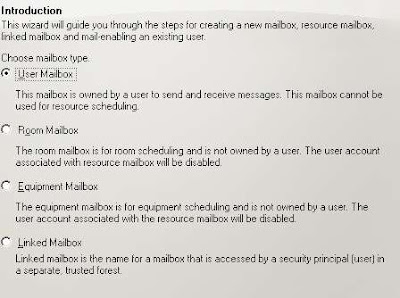
But wait you say -- you've been through the Mailbox Wizard, and there ain't no "Shared Mailbox" in it:
That's because you can only create it in the Exchange Management Shell.
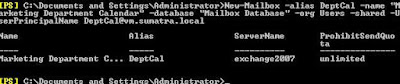
So to create a shared mailbox for the former Market Department Group calendar, you might use the following
[PS] c:\New-Mailbox -alias DeptCal -name "Marketing Department Calendar" -database "Mailbox Database" -org Users -shared -UserPrincipalName DeptCal@YOURDOMAIN.com
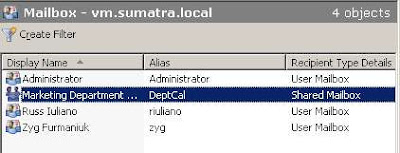
THEN it will show up in the Exchange Management Console!What do you do with it now?Well, not much.... yet.
This is a disabled account. We need to add user access to it, and this brings us into the dreaded world of Permissions.
First, create a security group (via Active Directory Users and Computers) in your domain called "Marketing Department Security Group" and add the users you want to access the calendar. And in our friend the Management Shell, grant that group full mailbox permissions:
[PS] c:\Add-MailboxPermission DeptCal -User:'Marketing Department Security Group' -AccessRights:FullAccess
We're not done yet. You will need to add "Send-As" permissions to the group as well. Those of you doing migrations are really used to this.
[PS] c:\Add-ADPermission "Marketing Department Calendar" -User:'Marketing Department Security Group' -ExtendedRights:Send-As -AccessRights:ReadProperty, WriteProperty -Properties:'Personal Information'
Users in the Group now have full rights to that shared calendar.
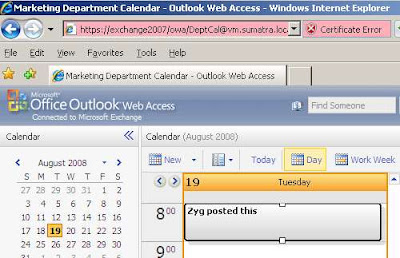
So in OWA just pass the DeptCal email address and use your own credentials to log in (please do not send me posts about my Certificate Error, it's a test server for gosh sakes).
SO in Meeting Maker if you have had a group calendar, map and migrate it into a USER calendar and then CHANGE it post-migration to a shared calendar using the "Type" command.
e.g.,
[PS] c:\Set-Mailbox DeptCal -Type:Shared
and set up your Security Groups.
Why not just create a Shared mailbox in Exchange and migrate into that? The account is Disabled -- we won't be able to re-create data in it with full fidelity. Create it as a User and then change it to Shared and you'll be happier with the results.
Need some Exchange Calendar applications or utilities developed for your enterprise-sized organization? Contact us.
Tuesday, June 03, 2008
Broken Meeting Data and Exchange 2007
Let's say you're in Exchange 2007 and still using Outlook 2003 (not that we ourselves do this or have any clients with this kind of environment, but we hear tell it's still done). So you create a meeting and invite a managed resource. Like this:
 Let's say that later on your users do things like deleting resources from meetings and not sending updates. Sort of like this:
 Is this avoided by using Outlook 2007? Yes. But 1.) This happens now and 2.) If you upgraded to 2007 from 2003 before you mandated Outlook 2007 to correct this you probably still have the results of this activity floating around your calendars.
Let's say that later on your users do things like deleting resources from meetings and not sending updates. Sort of like this: Is this avoided by using Outlook 2007? Yes. But 1.) This happens now and 2.) If you upgraded to 2007 from 2003 before you mandated Outlook 2007 to correct this you probably still have the results of this activity floating around your calendars.The result is what we've been calling Broken Meetings (you'll hear us sometimes call them "orphan" or "zombie" meetings) -- cruft that's making your resources harder to manage by taking up space they shouldn't be.
This wouldn't be a big problem if you could
- Identify them
- Remove them
So glad you asked what we were doing about it. Since we've gotten really used to creating well-formed calendar data in Exchange we started reversing the process to find data that isn't well-formed.
The result is this early version of code based on our existing insertion tools:
Check out the FindBrokenMtgs and DelBrokenMtgs buttons. I also need to mention that anyone who's fallen into the various Permissions black holes in E2K7 will immediately (and correctly!) intuit that setting this utility up to dig out all this data can be challenging.
Keep in mind we created a Broken meeting in Room 222 above, so let's feed that in and see what we find:
Looking for Broken Meetings we find the one that we know is waiting to be found.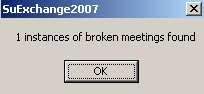
Next step of course is to remove it.

The process obviously gets a lot more complicated when you add recurring meetings and recurring meeting exceptions to the mix (and we've already dealt with that).
Also the process is closely related to the "Terminated User" problem of how to clear out meetings from former employees (and you'll see oblique references to this on some of the buttons above).
We'd really like to hear feedback on how useful capability like this would be and the best way to present it to an Exchange Admin.
Subscribe to:
Posts (Atom)